 MCF User Guide
Contact Forms
The contact form is the main way residents get in touch through your website. Messages are captured in the admin panel for you to read and respond to, sorted into categories so the right enquiries reach the right place — including statutory requests like Subject Access and Freedom of Information.
The public contact form
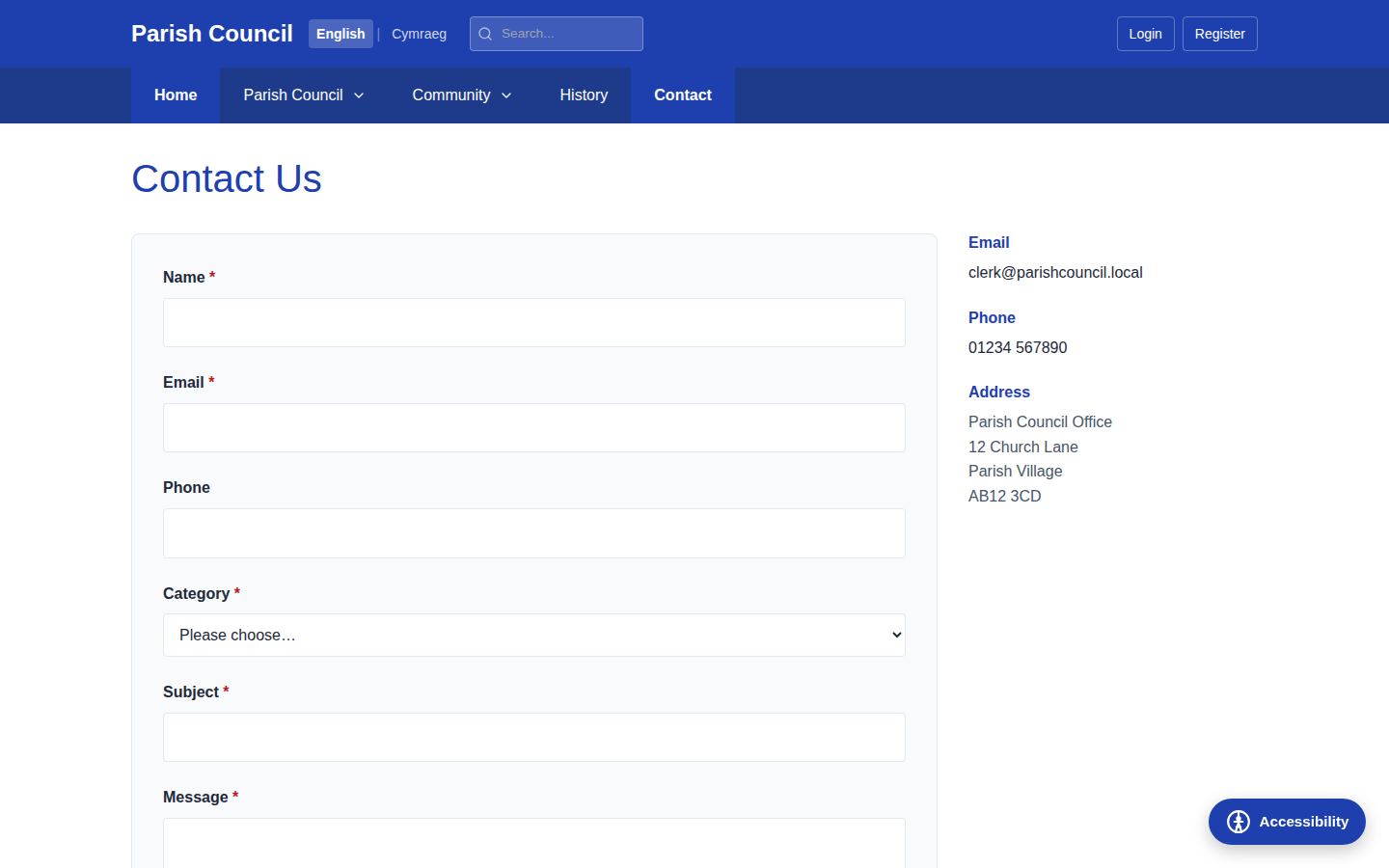
Residents reach the contact form at /contact. They complete their name,
email address and message, choose an enquiry category, and send it.
The form is protected against spam and abuse — it includes rate limiting, a hidden
honeypot field, and optional CAPTCHA — so the inbox you manage stays clean.
Enquiry categories
Categories help you triage messages and route statutory requests correctly. The available categories are:
| Category | Use |
|---|---|
| General Enquiry | Everyday questions for the council. |
| Planning Query | Questions about local planning matters. |
| Event Query | Questions about a council or community event. |
| Venue Booking | Enquiries about hiring a council venue. |
| Subject Access Request (UK GDPR) | A resident's statutory request for their personal data. |
| Freedom of Information Request | A statutory request for recorded information. |
| Councillor Conduct Complaint | A complaint about the conduct of a councillor. |
| Website Accessibility Issue | A report that part of the site is hard to use. |
| Complaint | A formal complaint to the council. |
| General Feedback | Comments and suggestions. |
| Other | Anything that doesn't fit the categories above. |
Subject Access Requests and Freedom of Information requests carry legal response deadlines. When one arrives, log it through your council's usual process straight away so the clock is properly tracked — don't leave it sitting in the contact inbox.
Reading and managing submissions
Every message sent through the form is stored under Communications › Contact Submissions in the admin panel.
- Go to Communications › Contact Submissions.
- The newest messages appear at the top. Select one to read it in full.
- Mark a message as read once you've dealt with it, so you can keep track of what's outstanding.
- Respond to the resident by email, then follow up through your normal record-keeping.
The Contact Submissions item in the sidebar shows a small badge with the number of unread messages, so you can see at a glance when something new has come in. Marking messages as read keeps the badge meaningful.
Residents expect a timely reply. A quick daily glance at Contact Submissions keeps the unread badge low and helps avoid complaints about being ignored.
Auto-reply emails
When a resident submits the form, the system can send them an automatic acknowledgement by email, so they know their message arrived. For these auto-replies — and for any reply you send from the system — to be delivered, your email settings need to be configured correctly. See Site Settings for where email is set up, which is usually handled by a super administrator.
The set of categories offered on the form is configured in the council's settings. If a category you need isn't appearing, or one you don't use should be hidden, raise it with your super administrator rather than changing module settings yourself.