 MCF User Guide
Private Pages & Access
Sometimes you need to publish content that isn't for the general public, such as a councillor briefing, a staff handbook or draft papers. Private Pages are pages on your website that only the signed-in people you choose can read.
How private pages differ from normal pages
Ordinary pages, built under Content > Pages, are
visible to everyone. A private page lives at a web address beginning
/private-pages/ and can only be read by someone who is signed in to the
website and:
- has one of the roles you ticked on the page, or
- is named under the page's Individual Users, or
- is a super administrator.
Everyone else is turned away, even if they have a direct link.
Private Pages suit content that shouldn't be public but isn't highly sensitive. They are not the place for passwords, personal data or financial records. Keep sensitive material in a protected folder or off the website entirely.
Creating a private page
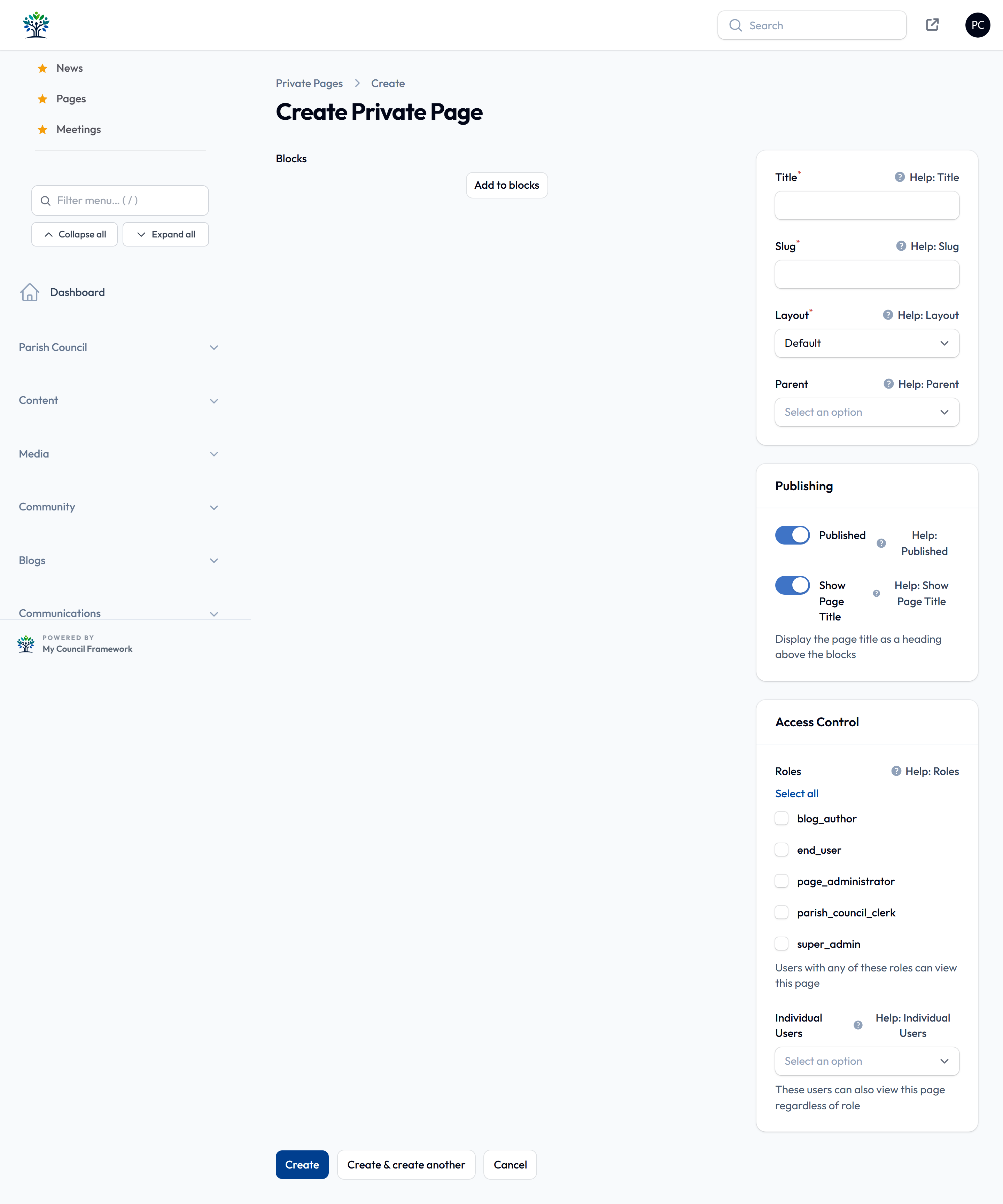
- Go to Content > Private Pages in the sidebar.
- Select New private page.
- Enter a Title. The Slug, the end of the web address, is filled in for you.
- Select Add to blocks to build the page from the same content blocks as a normal page.
- Optionally choose a Parent to group related private pages.
- Under Access Control, choose who can read it (see below).
- Check Published. It's on by default; turn it off to keep the page as a draft. Then select Create.
Choosing who can read a page
In Access Control you can grant access in two ways, and combine them:
| Field | Effect |
|---|---|
| Roles | Everyone with a ticked role can read the page. Roles are listed by their system names; see Users & Roles. |
| Individual Users | Named people can read the page whatever their role. Use this to share with a few people. |
end_user is the role everyone gets when they register on your website.
Ticking it lets any registered member of the public read the page.
There's no councillor role. Create an account for each councillor in
Users with the end_user role, and turn on
Force Password Reset. Then name them under
Individual Users on each page they should see. They sign in on the
public website, not the admin panel.
What visitors see
- Not signed in: they're sent to the sign-in page first.
- Signed in but not allowed: they see "You do not have permission to view this page."
- The list at
/private-pages: shows only the pages that person can read, so they never see titles meant for others. If there are none, it says so.
Adding private pages to your website menu
Go to Settings > Menu Builder and add a menu item
with the URL /private-pages. It works differently from
other menu items. Signed-in people who can read at least one private page see it as a
drop-down listing just their pages. Everyone else doesn't see it at all.
Protected documents
Private pages control who can read a page. To keep files private, use a protected folder in the Media Library. When you create a folder, turn on Protected folder. Files in it:
- can only be opened by clerks and super administrators;
- are left out of the website's search;
- won't open for anyone else, even from a link on a private page. So don't use them to share papers with councillors.
Folders inside a protected folder are always protected too. Only clerks and super administrators see the Protected folder switch.
Access rules decide which pages a page administrator can edit in the admin panel, not who can read pages. They're explained on Users & Roles.