 MCF User Guide
Listing blocks
Listing blocks show records you manage elsewhere in the admin, such as news, meetings or councillors. You add a record once in its own section and every page with the matching block updates by itself. To place one on a page, see Adding blocks and open the Listings category.

The listing blocks
| Block | What it lists | Where you manage the records |
|---|---|---|
| Amenities | Published amenities | Content > Amenities |
| Blog | Published blog posts, or a list of your blogs | Blogs > Blogs and Blog Posts |
| Business Directory | Published local businesses | Content > Businesses |
| Calendar | Published events and meetings on a calendar | Content > Events and Parish Council > Meetings |
| Councillors | Active councillors | Parish Council > Councillors |
| Document Archive | Files in a Media Library folder and its sub-folders, with filters | Media > Media Library |
| Document Browser | Documents in one Media Library folder | Media > Media Library |
| Events | Published events | Content > Events |
| FAQ | Published questions and answers | Content > FAQs |
| Grant Schemes | Published grant schemes | Community > Grant Schemes |
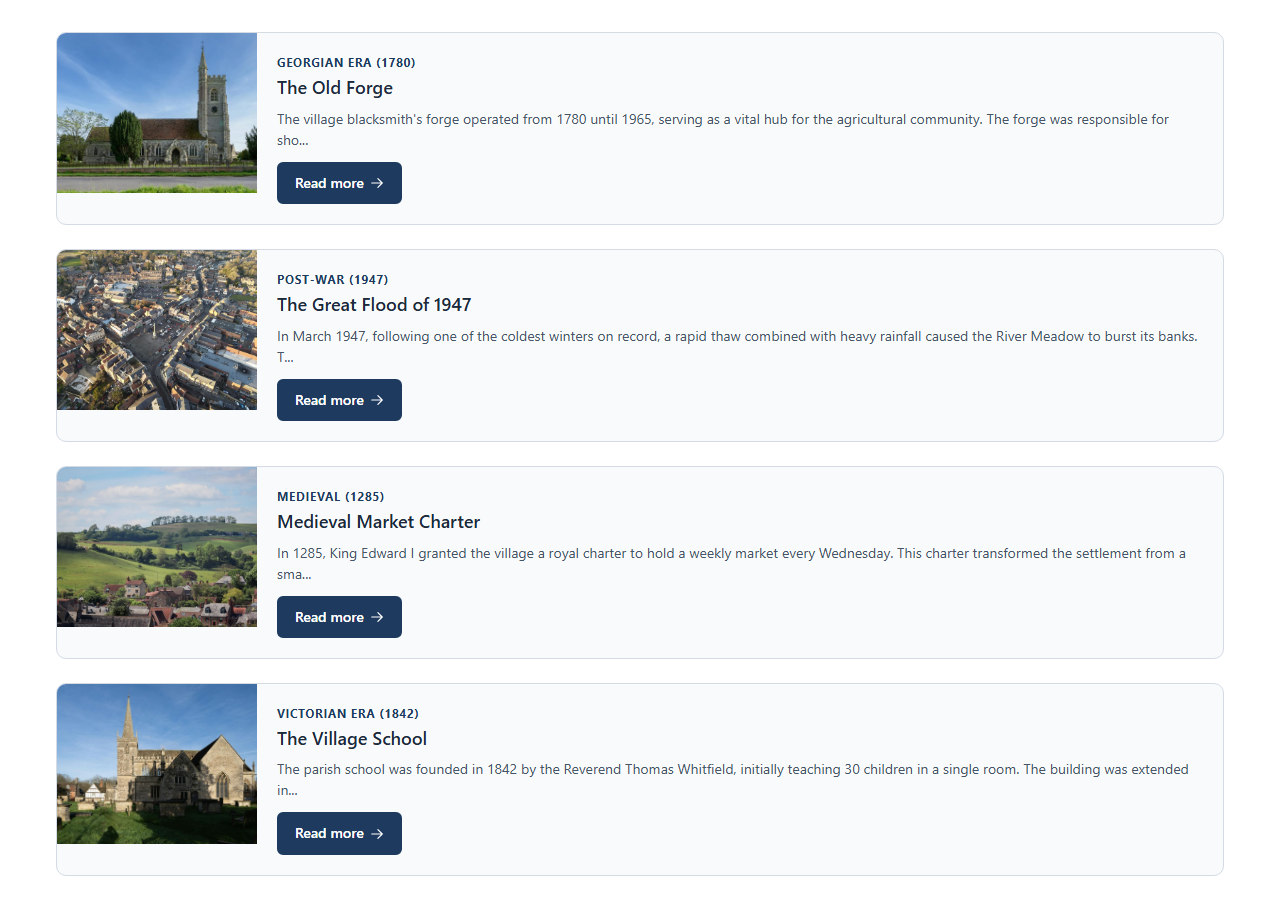
| History | Published history articles | Content > History Items |
| Local Attractions | Published local attractions | Content > Local Attractions |
| Meetings | Published meetings | Parish Council > Meetings |
| Minutes Archive | Minutes of published meetings | Parish Council > Meetings |
| News | Published news articles | Content > News |
| Notices | Published notices | Content > Notices |
| Personnel | Active staff | Parish Council > Personnel |
| Policies | Published policies | Parish Council > Policies |
| Reports & Audits | Published reports and audits | Parish Council > Reports & Audits |
| Resident Issues | Issues reported by residents and marked public | Community > Resident Issues |
| Services | Published services | Content > Services |
| Venues | Venues available for booking | Community > Venues |
Blog, Grant Schemes, Resident Issues and Venues only appear in the block picker when the matching feature (blogs, grants, issue reporting or bookings) is switched on for your site.
Settings most listing blocks share
Most listing blocks start with the same six settings. Calendar, Document Archive, Document Browser, FAQ and Services have their own instead, described under each block.
| Setting | What it does |
|---|---|
| Custom Heading | The heading above the list. Each block fills in a sensible default, such as "Latest News". The heading also appears in the block's title bar in the editor. |
| Show Heading | On by default. Turn it off to hide the heading from view. Screen readers still announce it. |
| Layout | How the records are arranged: Card Grid (3 columns) (the default), Card Grid (2 columns), Card List (single column), Compact List or Timeline. On a phone, grids drop to one column. |
| Show Images | On by default. Turn it off to hide each record's picture. Only on blocks whose records have pictures. |
| Limit | The most records to show. Leave it at 0 to show them all. |
| Show Pagination | Off by default. Turn it on to split a long list into pages. Limit then sets how many appear on each page. Only on blocks that can split their list (see below). |
Show Pagination appears on Blog, Events, Local Attractions, Meetings, Minutes Archive, News, Notices and Resident Issues. On Local Attractions and Notices you must also set Limit above 0. On the other blocks use Limit to keep a list short.
Show Images appears on Amenities, Blog, Business Directory, Councillors, Events, History, Local Attractions, News, Personnel and Venues.
Where a block lets you pin records, pinned ones (Pin to top on the record) come first. The rest follow their display position.
Amenities
Lists your published amenities, pinned ones first, then in display order. It uses the shared settings only. The default heading is "Local Amenities".

Blog
Lists published posts from published blogs, newest first. It can show a list of your blogs instead.

| Setting | What it does |
|---|---|
| Display | Blog Posts (the default) or Blog Directory (list of blogs). The directory shows each published blog. The settings below apply to Blog Posts only, apart from Items Per Page. |
| Blog | Show posts from one blog. Leave it empty for posts from all published blogs. |
| Filter by Categories | Show only posts from blogs in the chosen categories. Leave it empty for all. |
| Show Author | On by default. Shows who wrote each post. |
| Featured posts only | Off by default. Shows only featured posts in the main list. |
| Show featured posts sidebar | On by default. Adds a sidebar of up to five featured posts. |
| Items Per Page | How many per page when Show Pagination is on and Limit is 0. Default 12. |
Business Directory
Lists your published businesses, pinned ones first, then in display order and by name. It uses the shared settings only.

Calendar
A month, week or list calendar of your published events and meetings. Visitors can switch views and use the Community Events and Council Meetings toggles to choose what they see.

| Setting | What it does |
|---|---|
| Heading | The heading above the calendar. Default "Calendar". |
| Show Heading | On by default. |
| Default View | The view the calendar opens on: Month (the default), Week or List (agenda). |
| Show Events by default | On by default. Ticks the Community Events toggle when the calendar first loads. |
| Show Meetings by default | On by default. Ticks the Council Meetings toggle when the calendar first loads. |
Councillors
Lists your active councillors, pinned ones first, then in display order. It uses the shared settings only. The default heading is "Our Councillors".

Document Archive
Lists every file in a Media Library folder and all its sub-folders. Each first-level sub-folder becomes its own section, newest uploads first. Files sitting directly in the chosen folder appear above the sections. Visitors can filter by type, year and month, worked out from your folder names.

| Setting | What it does |
|---|---|
| Title | An optional heading above the archive. |
| Layout | List (one per row) (the default), Card Grid — Small or Card Grid — Large. |
| Media Library Folder | Required. The folder to list. |
| Type filter | On by default. Uses the first-level sub-folder names, such as "Agendas" or "Minutes". |
| Year filter | On by default. Uses sub-folder names that look like a year, such as 2026. |
| Month filter | Off by default. Uses month folders inside year folders, such as 2026/Jan. |
A folder set up as Minutes/2026/Jan gives each file a type, a year and a
month, so all three filters work. Files from protected folders only show to staff
who can see protected media.
Document Browser
Simple download links to the documents in one Media Library folder. Pictures are left out, and so are sub-folders. A file's Title from the Media Library is used as its link text when it has one.

| Setting | What it does |
|---|---|
| Heading and Show Heading | The heading above the list. Default "Documents", shown. |
| Media Library Folder | Required. The folder to list. |
| Columns | 2 Columns, 3 Columns (the default) or 4 Columns. |
| Card Style | Small (compact row) (the default) or Large (centred card). |
| Sort By | Name (A–Z) (the default), Name (Z–A), Newest first or Oldest first. |
| Name Style | For files without a Title: As-is (the default), Capitalise Each Word, UPPERCASE or lowercase. |
| Replace underscores/hyphens with spaces | On by default. Tidies file names for files without a Title. |
| Show file extension in name | On by default. Adds ".pdf" and so on to the link text for files without a Title. |
| Show file type | On by default. Shows the file type, such as "PDF", under the name. |
| Show file size | Off by default. |
Events
Lists your published events, soonest first by default. Visitors can switch between Upcoming, Past, Featured and All.

| Setting | What it does |
|---|---|
| Default Filter | Which events show first: Upcoming (the default), Past, Featured or All. |
| Order by date | Soonest / earliest first (the default) or Latest / most recent first. |
| Show featured events at the top | Off by default. Featured events appear in a highlighted section above the list and stay in the list too. |
| Show Calendar Link | On by default. Adds a button to your events calendar. |
FAQ
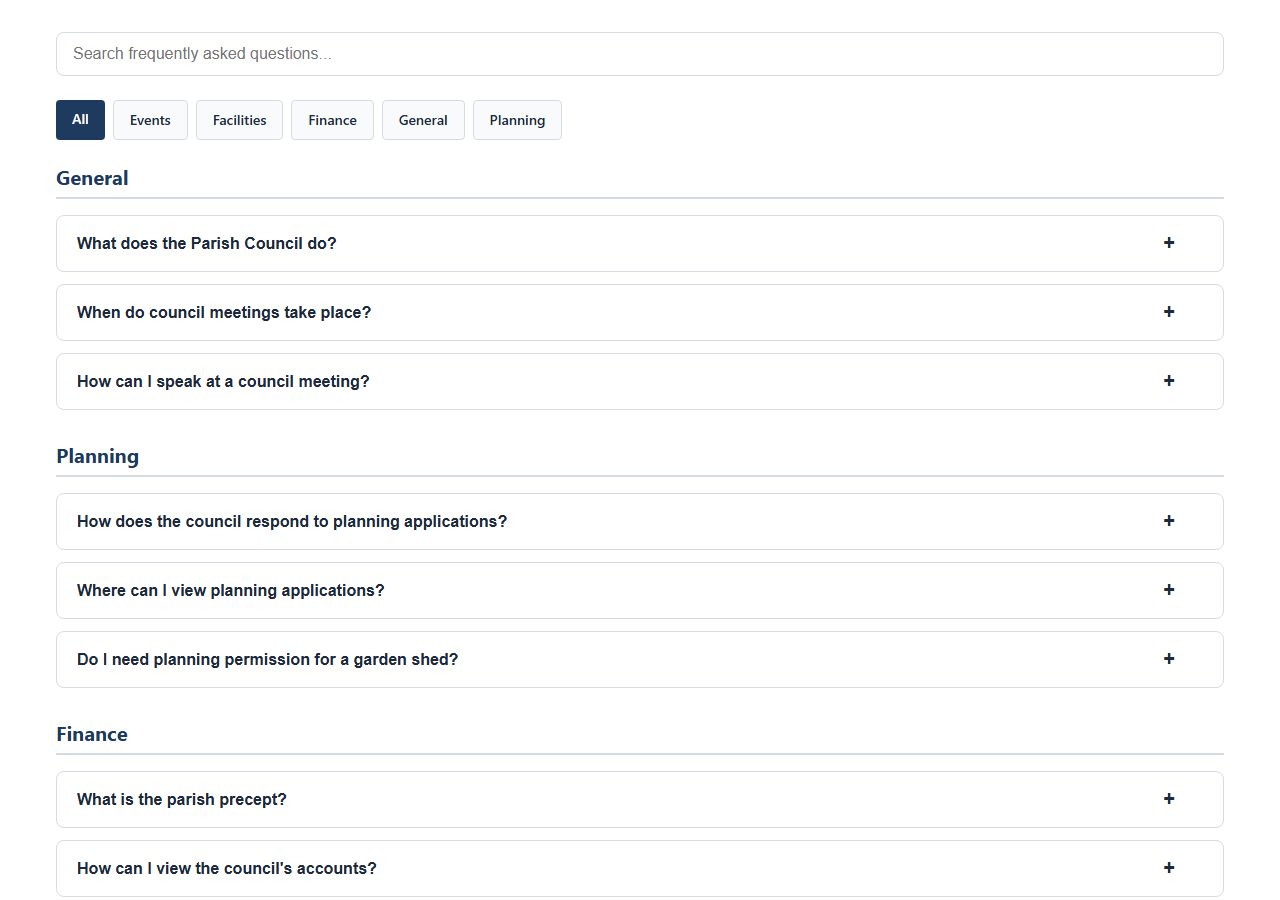
Lists your published questions, grouped by category and in display order. Featured questions appear first.
| Setting | What it does |
|---|---|
| Custom Heading and Show Heading | Default "Frequently Asked Questions", shown. |
| Layout | Accordion (default) lists every question under its category. Tabs (classic), Tile grid (icon tiles + panel below) and List + panel (side by side) turn each category into a tab that reveals its questions. |
| List Position and List Width | For List + panel only. Put the list on the Left (the default) or Right, at 25%, 33% (the default), 40% or 50% of the width. |
| Show Category | All Categories (the default), or one category only. |
| Show Search Box | On by default. Accordion layout only. |
| Show Category Filters | On by default. Accordion layout showing all categories only. |
Grant Schemes
Lists your published grant schemes in display order, then by name.

| Setting | What it does |
|---|---|
| Split Open / Closed | On by default. Shows open schemes under "Open for Applications" and the rest under "Closed". |
While Split Open / Closed is on, every scheme is shown and Limit is ignored. Turn the split off if you want to cap the list.
History
Lists your published history articles, pinned ones first, then in display order. It uses the shared settings only. The default heading is "Our History".
Local Attractions
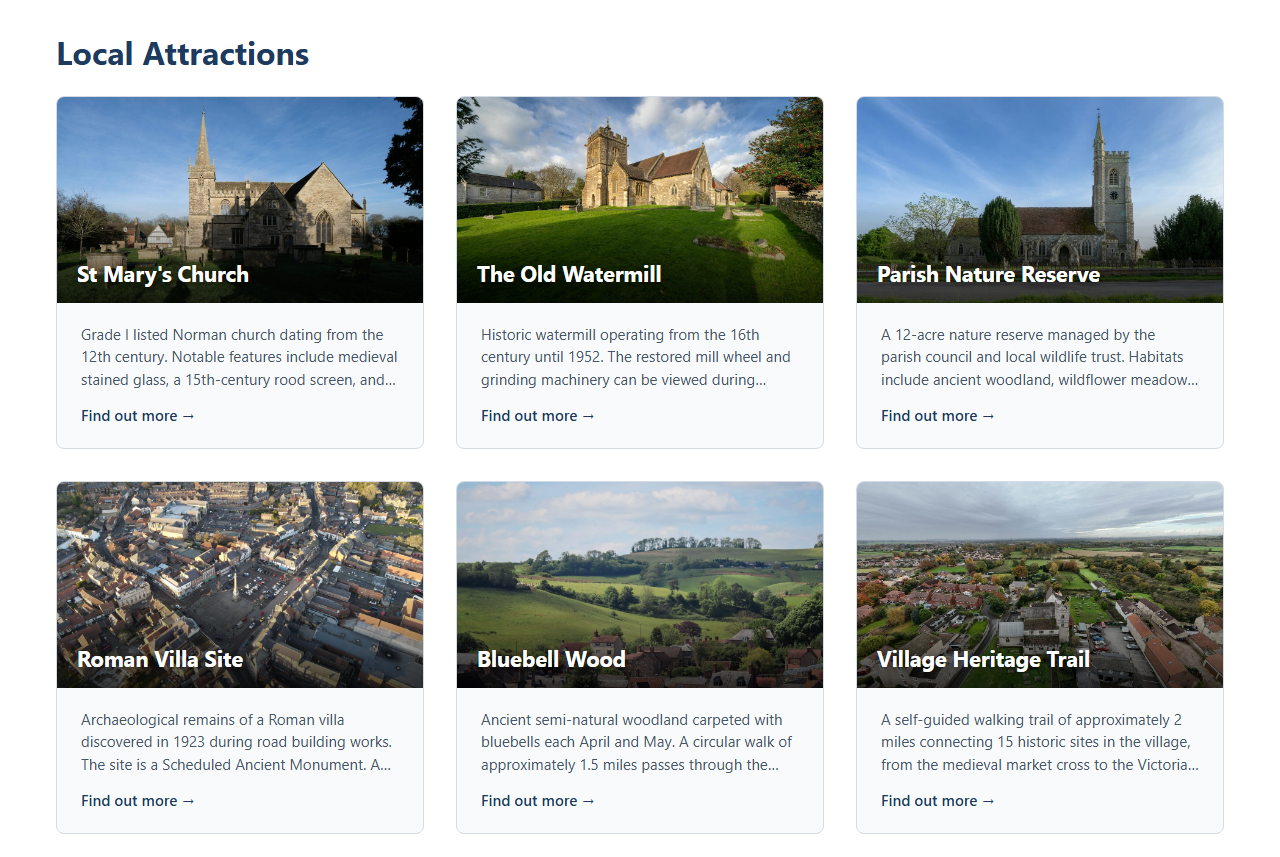
Lists your published local attractions, pinned ones first, then in display order.
| Setting | What it does |
|---|---|
| Show Details Excerpt | On by default. Shows a short extract of each attraction's details. |
| Show Attachment Count | On by default. Shows how many files are attached. |
Meetings
Lists your published meetings. By default it shows upcoming meetings (soonest first) and past meetings (most recent first) as two lists.

| Setting | What it does |
|---|---|
| Items per page | How many per page when Show Pagination is on and Limit is 0. Default 10. With the split on, each list gets its own page controls. |
| Show Document Links | On by default. Shows links to each meeting's documents. |
| Split Upcoming / Past | On by default. Turn it off for one list. |
| Order by meeting date | Only when the split is off: Most recent first (the default) or Earliest first. |
| Show past meetings | On by default. Turn it off to show only upcoming meetings. |
| Show year / month filter | On by default. |
| Show meeting type filter | Off by default. |
Minutes Archive
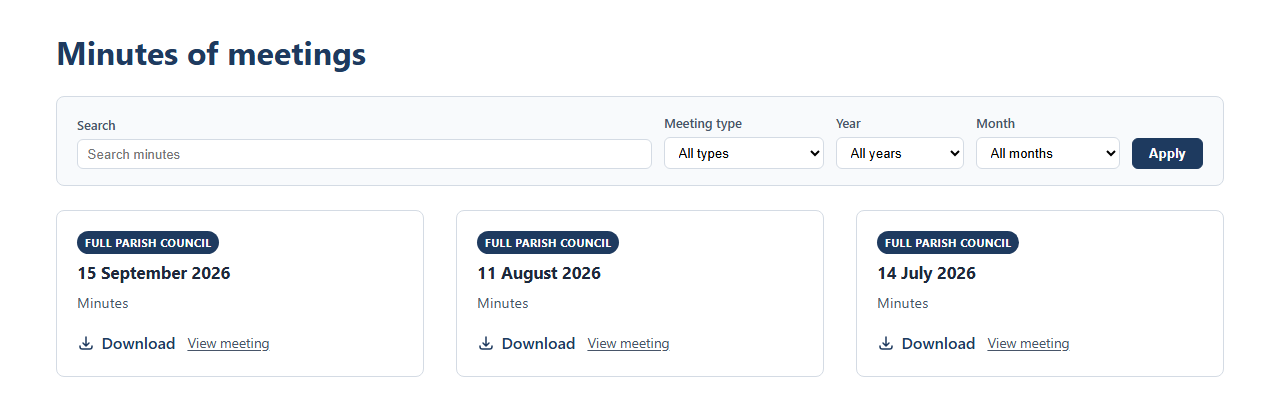
Lists the minutes of your published meetings, newest meeting first, one row per set of minutes. A meeting appears once minutes are attached to it on its edit page. Meetings with no minutes are left out.
| Setting | What it does |
|---|---|
| Items per page | How many per page when Show Pagination is on and Limit is 0. Default 12. |
| Show search box | On by default. Searches the meeting title and the title of the minutes document. |
| Show meeting type filter | On by default. |
| Show year filter | On by default. |
| Show month filter | On by default. |
News
Lists your published news articles, newest first. Visitors can filter by category.

| Setting | What it does |
|---|---|
| Filter by Categories | Show only these categories. Leave it empty for all. |
| Filter by Tags | Show only articles with these tags. Leave it empty for any tags. |
| Show Featured Sidebar and Show Featured Articles | Both on by default. Together they add a sidebar of up to five featured articles. Turn either off to remove it. |
| Items Per Page | How many per page when Show Pagination is on and Limit is 0. Default 12. |
Notices
Lists your published notices, newest notice date first.

| Setting | What it does |
|---|---|
| Filter by Category | Show only these notice categories. Leave it empty for every category. |
| Show Category Badge | On by default. |
| Show Notice Date | On by default. |
| Show Details Excerpt | On by default. |
| Show Attachment Count | On by default. |
Personnel
Lists your active staff, pinned ones first, then in display order.

| Setting | What it does |
|---|---|
| Personnel type | Show one type of staff only. Leave it on Show all types for everyone. If you pick a type and keep the default heading "Our Staff", the heading becomes the type's name, such as "Office Staff". |
Policies
Lists your published policies, pinned ones first, then in display order and by name. Visitors can filter by category.

| Setting | What it does |
|---|---|
| Layout | Adds three choices to the shared list: Compact Tile, Featured + Grid and Table. |
| Center card text | Off by default. Card Grid layouts only. |
| Full-width download button | Off by default. Card Grid layouts only. |
| Show Category Filters | On by default. |
Reports & Audits
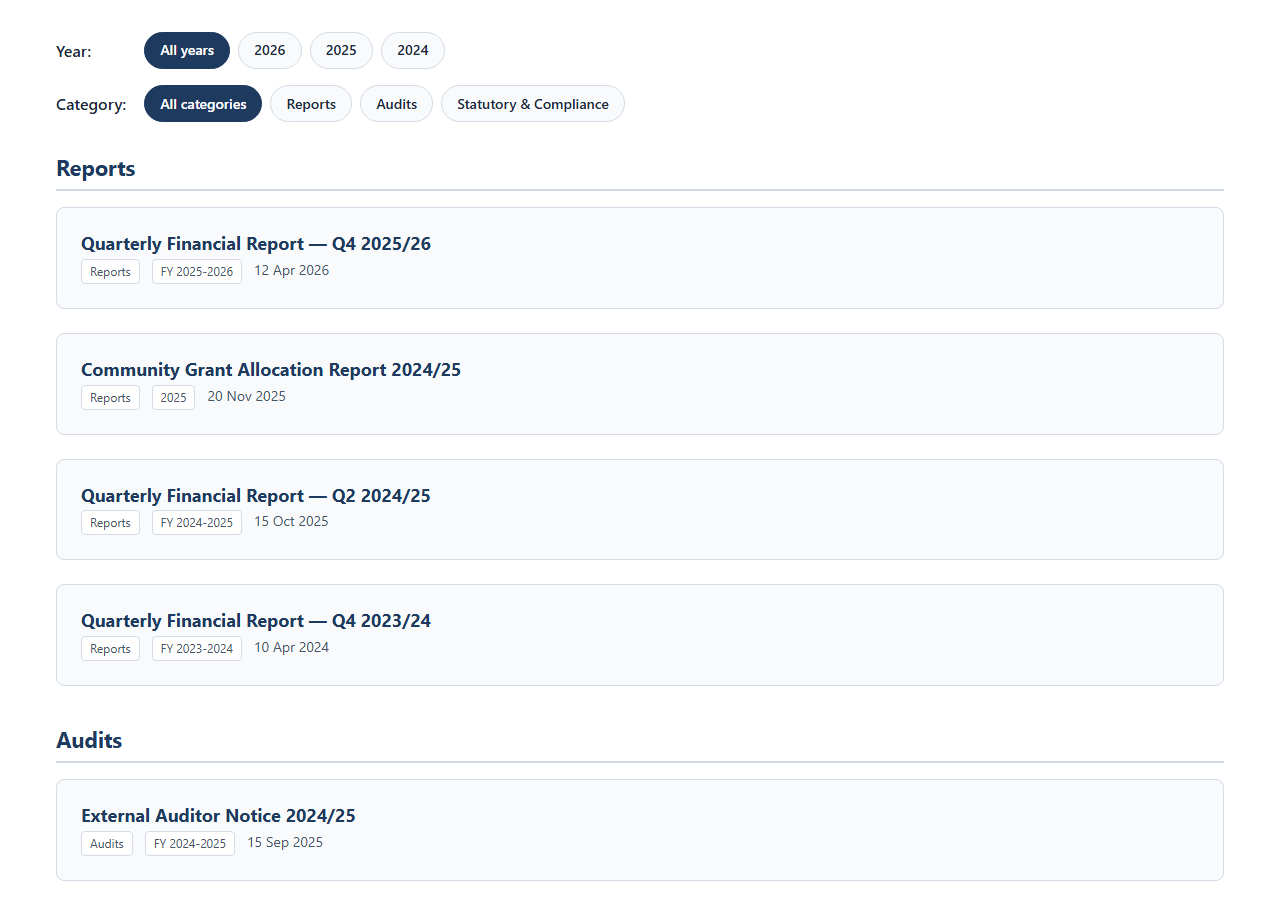
Lists your published reports and audits, grouped under category headings by default. Visitors can filter by year and category.
| Setting | What it does |
|---|---|
| Order by | Report date (newest first) (the default), Report date (oldest first), Display order (manual, ascending), Display order (manual, descending), Publication date (newest first) or Publication date (oldest first). |
| Categories to show | Empty by default, which shows every category. Choose one or more categories to show only their reports. Pick Uncategorised (no category) as well to include reports with no category. The year and category filter buttons then only offer what this block shows. |
| Show year filter | On by default. |
| Show category filter | On by default. |
| Group reports under category headings | On by default. Turn it off for one list in your Order by order. |
Resident Issues
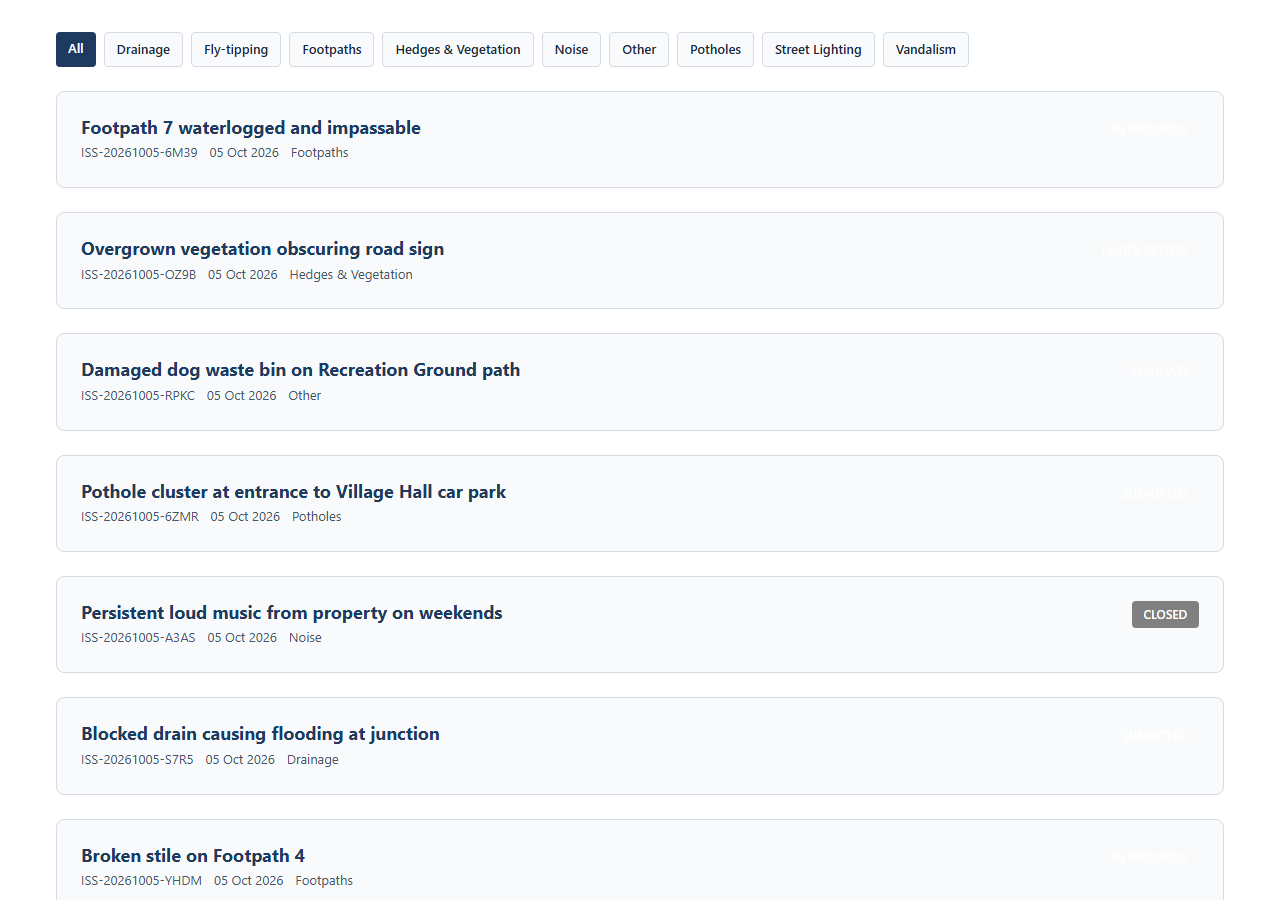
Lists issues reported by residents that are marked Publicly Visible, newest first. Visitors can filter by category.
| Setting | What it does |
|---|---|
| Show Map Link | On by default. Adds a View Map button when the issues map is switched on. |
The list is empty unless Public Issue Visibility is on under Settings > Modules. The map button also needs Enable Map View there. The View Map and Report Issue buttons sit beside the heading, so turning off Show Heading hides them too.
Services
Lists your published services as icon tiles, pinned ones first, then in display order.

| Setting | What it does |
|---|---|
| Custom Heading and Show Heading | Default "Services", shown. |
| Layout | Icon Grid (large icon, big tile) (the default), Compact Icon Row or Horizontal Cards (icon beside text). |
| Columns (Icon Grid only) | 2 columns, 3 columns (the default) or 4 columns. |
| Show Description | On by default. |
| Limit | The most services to show. 0 shows them all. |
Venues
Lists venues that are Available for Booking, pinned ones first, then in display order and by name. It uses the shared settings only.

A venue with Available for Booking turned off is left out of this block.