 MCF User Guide
Navigation & Search
The admin panel holds a lot of features, all tidied away into clearly labelled groups down the left-hand side. This page shows you how the menu is organised, how to jump straight to anything with the search box, and how residents search the public website.
The left-hand menu
Everything you manage lives in the menu down the left of the screen. Related features are gathered into groups, each with a heading. Select a group heading to expand it and reveal its items; select it again to collapse it.
| Group | What's inside |
|---|---|
| Parish Council | Councillors, committees, meetings, policies, reports and audits. |
| AGAR | Your annual governance return and the asset register. Only appears if AGAR has been switched on for your site. |
| Content | Pages, news, events, notices, FAQs, amenities, history and more. |
| Media | The image and document library. |
| Community | Resident issues, venues, grants and local features. |
| Blogs | Multi-author blogs, posts and the comment moderation queue. |
| Communications | Contact submissions, subscribers and newsletters. |
| Finance | Payments, ticket orders and donations. Only appears if online payments have been switched on for your site. |
| Analytics & Audit | Visitor analytics and the audit log. |
| Users & Access | User accounts and roles. |
| Settings | Branding, theme, communications, integrations and more. |
The groups and items that appear depend on which features your council has switched on and on your role. If a colleague can see something you can't, it's usually a difference in role or in the features enabled for your site — not a fault.
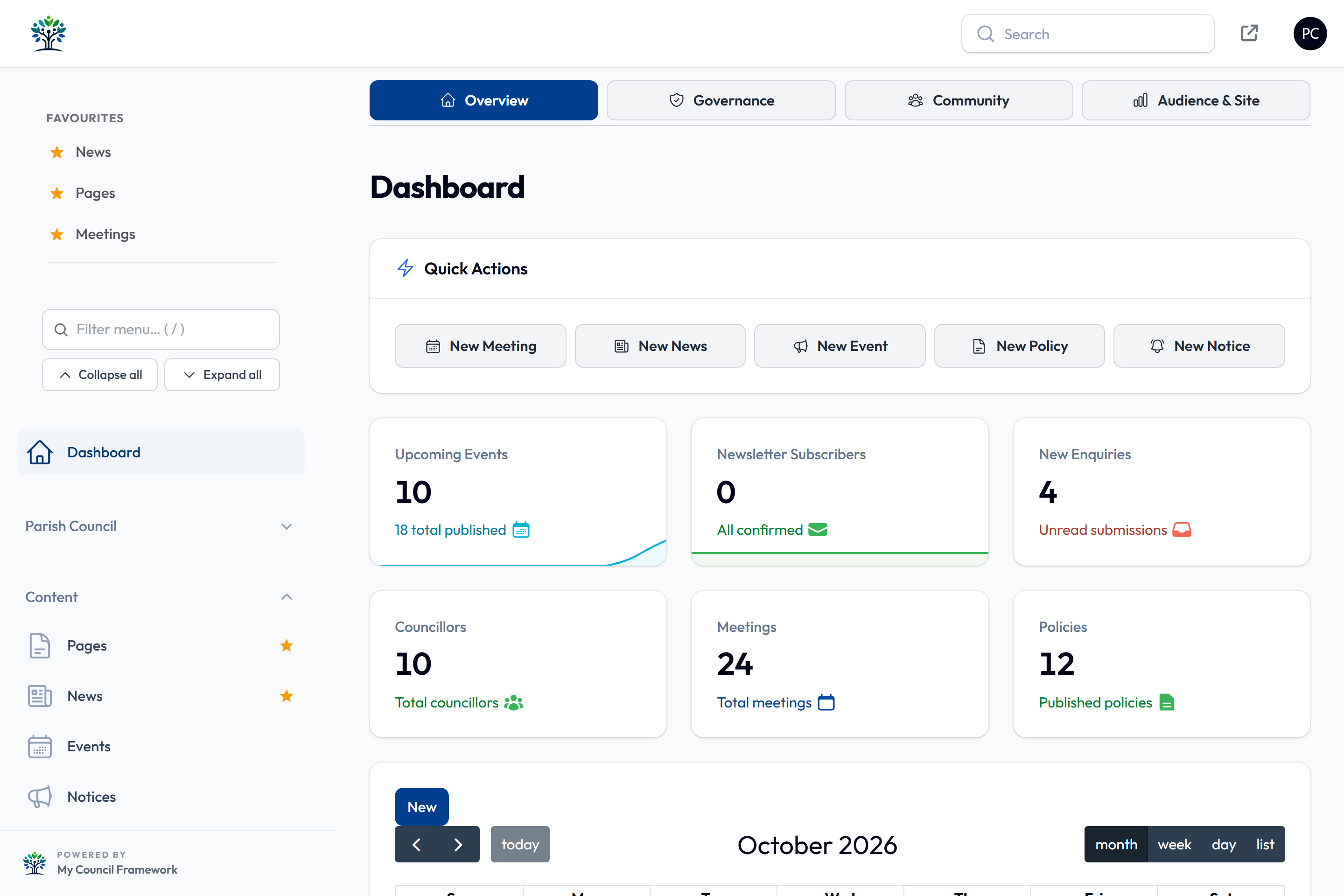
Collapsing and expanding groups
All groups start collapsed so the menu stays short and tidy. The panel remembers which groups you leave open, so the next time you sign in your menu looks just as you left it.
Beneath the search box you'll find two handy buttons:
- Collapse all — tidies every group away at once.
- Expand all — opens every group so you can scan the full menu.
Searching the menu
The quickest way to reach any feature is the search box at the top of the sidebar. Start typing and the menu instantly filters to matching items, opening whichever groups contain a match.
- Press / anywhere in the admin panel to jump straight to the search box.
- Type a few letters of what you're looking for — for example
newsorvenue. - The menu narrows to matching items as you type.
- Select the item you want to open it.
Press / to focus the search box, and Esc to clear it and restore the full menu. When you clear the search, any groups that were collapsed before go back to being collapsed.
Features reached from a button
Some related features don't have their own menu item. Instead, you reach them from a button along the top of the page they belong to. This keeps the menu uncluttered.
| To manage | Open | Then select |
|---|---|---|
| Committees | Councillors | Manage Sub-Committees |
| Meeting types | Meetings | Manage Meeting Types |
| Policy categories | Policies | Manage Categories |
| Report categories | Reports & Audits | Manage Categories |
| Staff types | Personnel | Manage Personnel Types |
| News categories | News | Manage Categories |
| Notice categories | Notices | Manage Categories |
| Issue categories | Resident Issues | Manage Categories |
| Venue bookings | Venues | View All Bookings |
| Grant applications | Grant Schemes | View Applications |
| Ticket orders | Events | Ticket Orders |
If you can't find something in the menu, check the related page for a button along the top.
Search on the public website
Residents have their own search, built into the public website. It looks across all your published content at once — news, events, meetings, policies, FAQs, amenities, venues, councillors and more — and inside your documents too: Documents covers files in the Media Library, and Meeting Papers covers agendas, minutes and other meeting documents.
- As a resident types into the search bar, live suggestions appear to help them refine what they're after.
- The full results page groups matches by type, with filter pills so visitors can narrow down to, say, just news or just meeting papers.
- A second row of pills narrows results by date: Last 30 days, Last 12 months, This year or Last year.
- Matching words are highlighted in each result so it's clear why it appeared.
Public search only ever returns published content. Drafts, scheduled items not yet live, anything restricted to logged-in users, and files in protected Media Library folders never show up in resident searches.