 MCF User Guide
News
News is your council's announcement feed: road closures, grant openings, decisions from the latest meeting. Articles appear on your website's News page, newest first, and residents can follow them in a feed reader.
Creating a news article
- Go to Content > News in the menu.
- Select New news.
- Fill in the Details tab (see the fields below).
- Check the Publishing tab. Published is already on, so the article goes live when you save. Switch it off if you want to save a draft instead.
- Select Create.
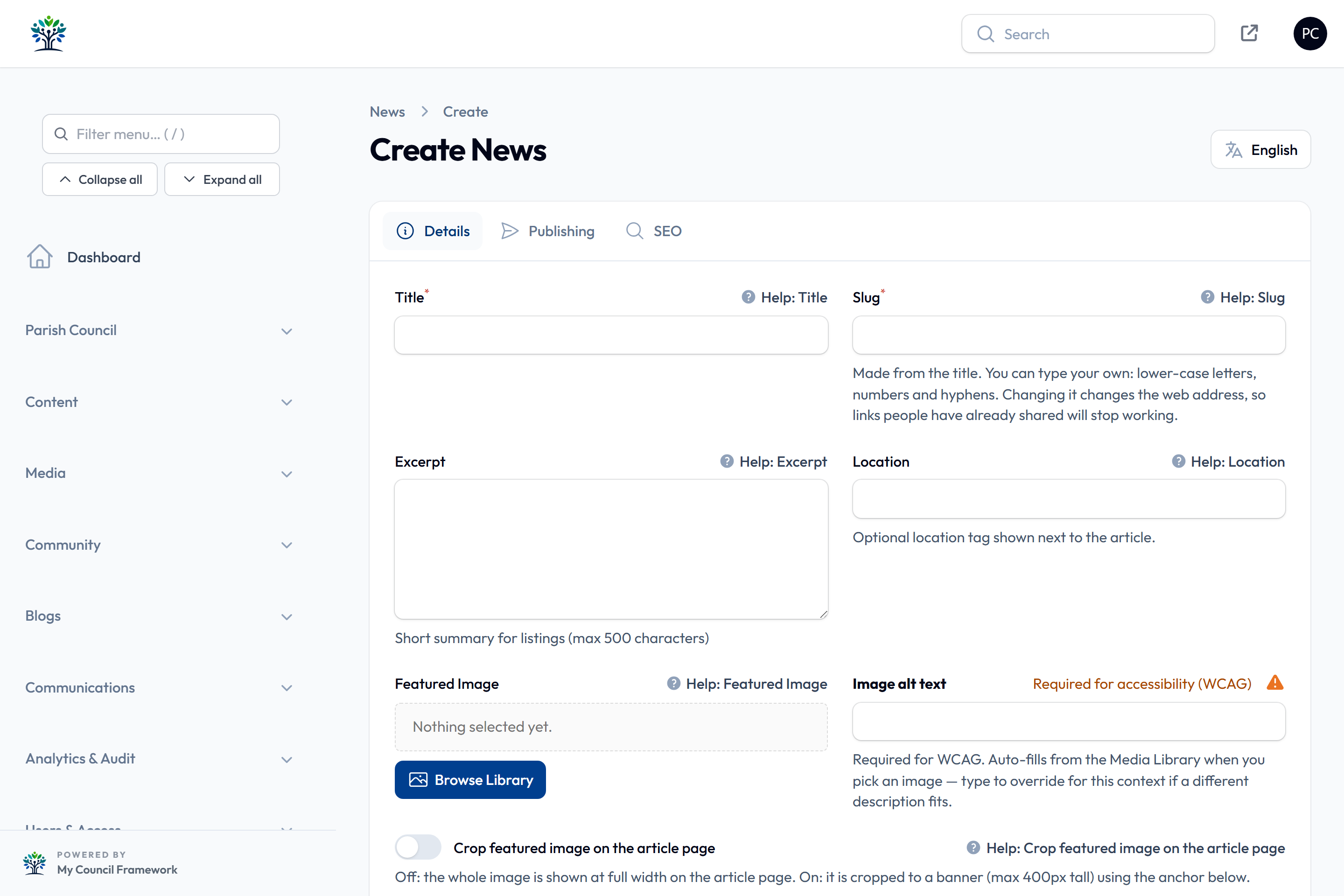
The Details tab
| Field | What to enter |
|---|---|
| Title | A clear, descriptive headline. |
| Slug | The article's web address, made from the title. You can type your own instead: lower-case letters, numbers and hyphens (anything else is tidied up when you leave the box). If you later change the title but not the slug, the address follows the new title. Either way, links people have already shared stop working, so change it only when you need to. |
| Excerpt | A short summary (up to 500 characters) shown on news listings. |
| Location | Optional. Not currently shown on the public site. |
| Featured Image | The picture shown on listing cards and at the top of the article. Choose it from the Media Library and describe it in the alt text box, which is required. |
| Crop featured image on the article page | Off: the whole picture is shown at full width. On: it is cropped to a banner, and Featured image anchor picks which part stays in view. |
| Additional Documents | Optional files (PDFs and so on) listed as downloads under the article. |
| Content | The article itself. Use the editor to format text and add links and images. |
| Category | The section the article belongs to. The list comes from Manage Categories (see below). |
| Tags | Keywords. Press Enter or type a comma after each one. |
| Author | Filled in with your name; change it if you're posting for someone else. |
When you edit an existing article, an Analytics section also shows its Total Views and Reading Time.
At the bottom of the Details tab, open Additional Content Blocks to add the same building blocks used on ordinary pages, such as image galleries, accordions and maps. They appear beneath the article on the public site. See the Page Builder for what each block does.
The Publishing tab
| Field | What it does |
|---|---|
| Published | Must be on for the article to appear on the website. On by default; switch it off to keep the article as a draft. |
| Featured | Marks the article as featured (see below). |
| Publish Date | Leave empty to publish as soon as you save, or pick a future date and time to schedule it. |
| Unpublish Date | Optional. The article comes off the website at this time. |
| Sort order | Lower numbers come first in news lists. Leave it at 0 and news is listed newest first; give an article a negative number, such as -1, to keep it above newer articles. |
The SEO tab holds optional settings for search engines and social media, such as a Meta Title, Meta Description and Social Share Image. See SEO & Language.
The News list
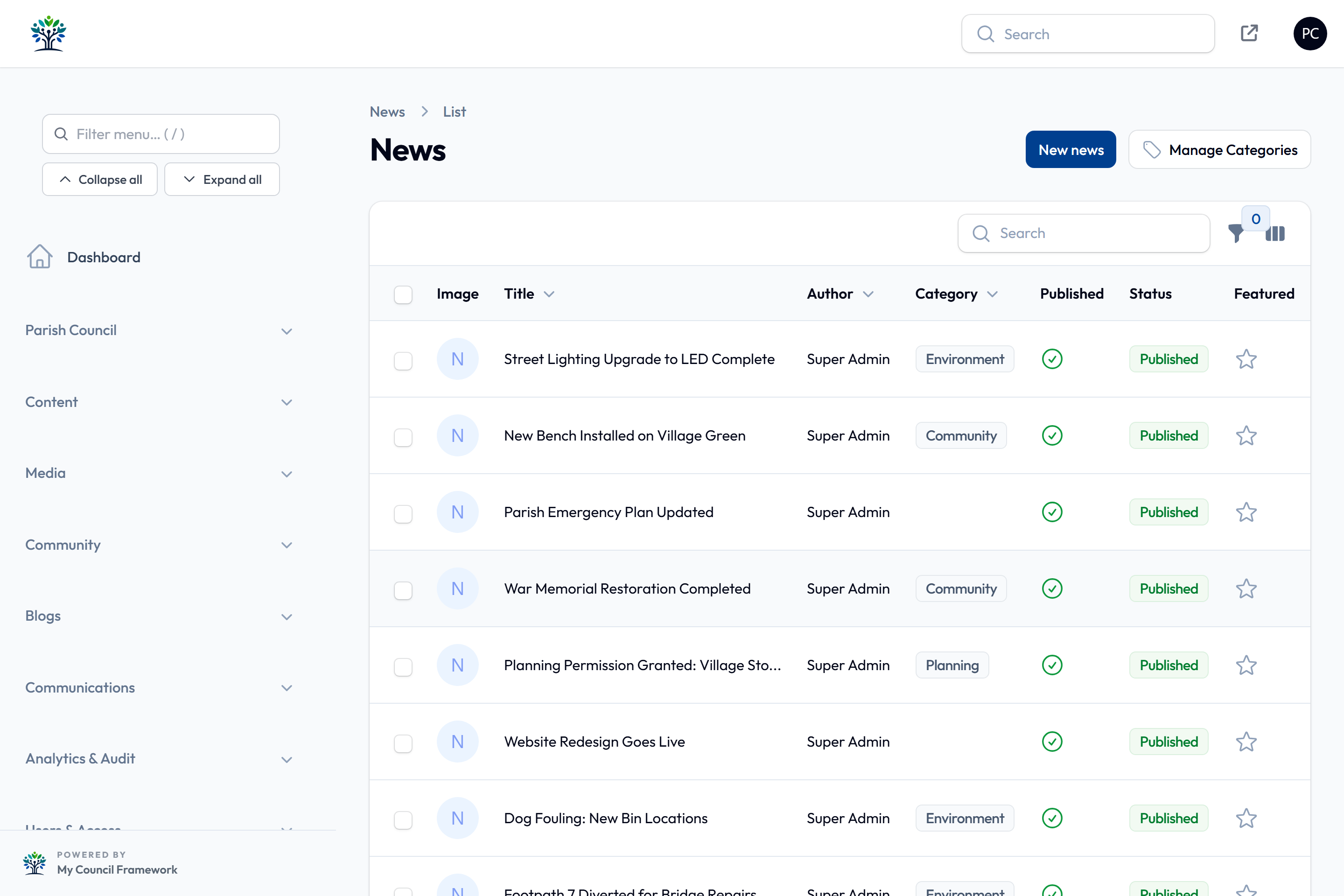
The Status column shows where each article stands:
- Draft: Published is switched off.
- Scheduled: Published is on, but the Publish Date hasn't arrived.
- Published: live on the website.
- Expired: the Unpublish Date has passed. Shortly afterwards the CMS switches Published off, so the article then shows as Draft. To bring it back, clear or move the Unpublish Date and switch Published on again.
Use the filter button to show articles by Category, Published, Featured or Author. Each row has View (a read-only look in the admin), Edit and Delete.
Deleted articles aren't gone straight away. Open the filters, set Deleted records to show them, then select Restore on the article. Only a super administrator can delete an article permanently.
Categories
Each article can belong to one category, such as Planning or Environment. Clerks manage the list:
- On the News list, select Manage Categories.
- Select New news category, or Edit an existing one.
- Fill in the Name (leave Slug blank and it is made from the name), an optional Description and a Sort order (lower numbers come first).
- Switch Is active off to hide a category from the article form without deleting it.
What residents see
- The News page (
/news) is an ordinary page built with the News block, so you can change its layout in the Page Builder. Visitors can switch between categories with the tabs at the top. - Each article page shows its reading time, view count, tags and related articles from the same category. Selecting a tag lists every article with that tag.
- Residents who use a feed reader can follow your news at
/news/feed.
Featured articles
Switching on Featured doesn't move an article up the list (use Sort order for that). Instead, a featured article carries a Featured badge on its card and appears in the Featured sidebar of the News page (up to five), when the page's News block has that sidebar switched on. Use it sparingly for genuinely headline news.
Write a notice about a road closure on Monday and set the Publish Date to Wednesday, when the closure starts. It shows as Scheduled and stays hidden until then.
To add Welsh, open the article and use the English / Cymraeg button at the top of the page to switch the form to Welsh. The title, excerpt and content can be translated; anything left untranslated shows in English.
After publishing, open your website's News page (the arrow button at the top right of the admin opens your site) and check the article's picture, links and wording.