 MCF User Guide
Events & Calendar
Events cover everything happening in the parish: fêtes, coffee mornings, litter picks, consultations. They appear on your website's Events page and on the calendar alongside council meetings.
Creating an event
- Go to Content > Events in the menu.
- Select New event.
- Fill in the Details tab (see below).
- Check the Publishing tab. Is published is already on, so the event goes live when you save. Switch it off if you want to save a draft instead.
- Select Create.
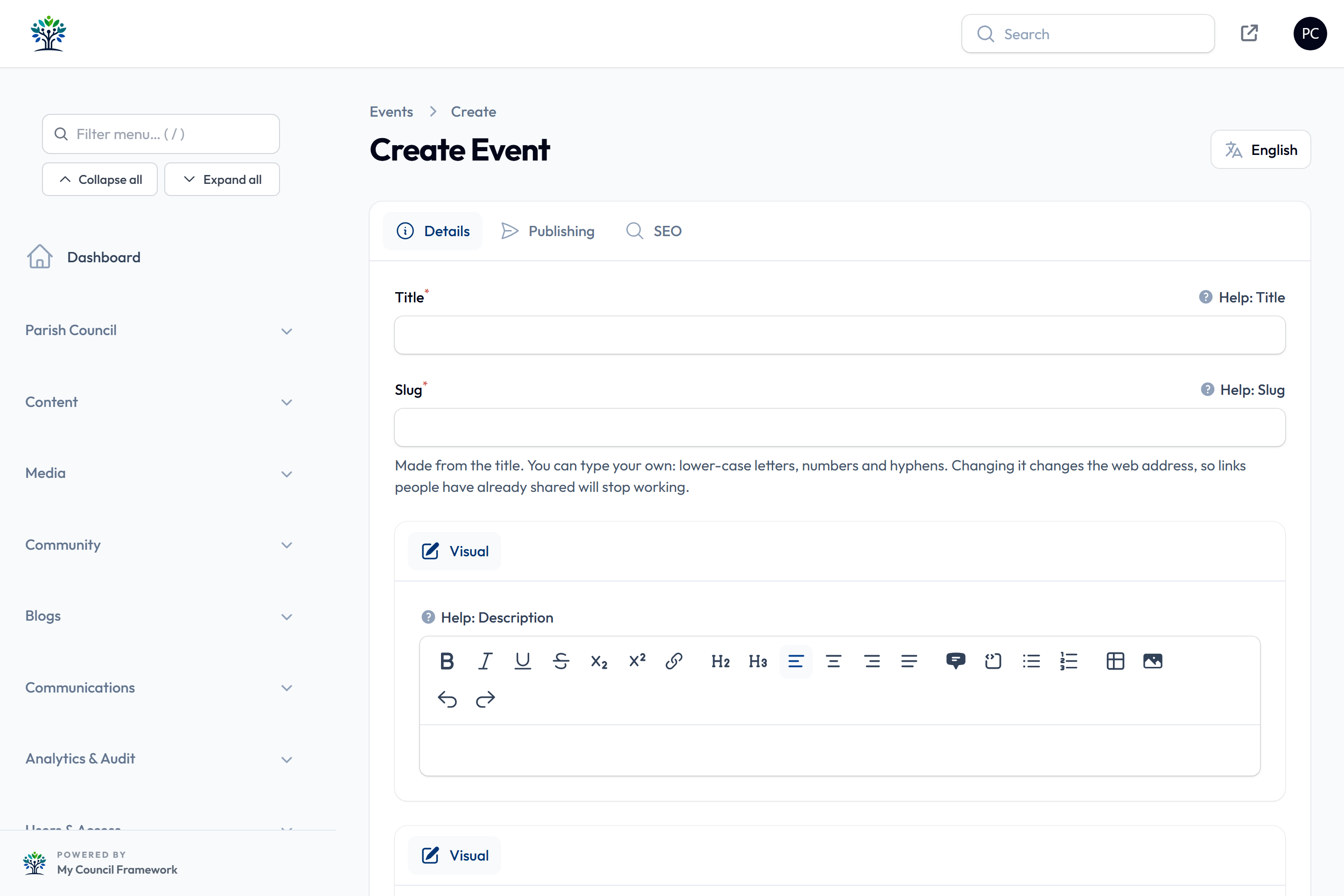
The Details tab
| Field | What to enter |
|---|---|
| Title | The name of the event. |
| Slug | The event's web address, made from the title when you create it. You can type your own: lower-case letters, numbers and hyphens. Changing it later stops links people have already shared from working. |
| Description | A short description, shown on event cards and listings. |
| Full Description | Optional. The full details for the event page: what's happening, who it's for, what to bring. |
| Start date, End date | When the event runs. Switch on All day if it has no set times. |
| Repeats | Does not repeat, Weekly or Monthly, with an optional Repeat until date. See Repeating events. |
| Location, Organizer | Where it's held and who's running it. |
| Contact email, Contact phone, Website | Optional contact details shown on the event page. |
| Category | Optional free text, such as Community or Sport. Events with the same category are shown together as related events. |
| Main Image | The picture for cards and the event page, with its alt text. Crop main image on the event page turns it into a banner. |
| Calendar icon | Optional. An icon the Calendar block shows instead of the event's picture. |
| Gallery, Documents | Extra pictures and files from the Media Library. |
| Cost, Cost description | The price, if any, and a note such as "Children free". |
| Booking required | Switch on if people must book, then give a Booking url, Booking phone or Booking email. |
| Map Location | Optional latitude and longitude to place the event on a map. |
At the bottom of the Details tab, open Additional Content Blocks to add the same building blocks used on ordinary pages. They appear beneath the event details on the public site. See the Page Builder.
The Publishing tab
| Field | What it does |
|---|---|
| Is featured | Lets an Events block show this event at the top, if the block is set to. |
| Is published | Must be on for the event to appear on the website. On by default; switch it off to keep the event as a draft. |
| Publish Date | Leave empty to publish as soon as you save, or pick a future date to schedule it. |
| Unpublish Date | Optional. The event comes off the website at this time. Past events otherwise stay on the calendar. |
| Display in event calendar | How the event looks on the calendar: Image and text, Just image, or No image (text only). |
The SEO tab holds optional settings for search engines and social media. See SEO & Language.
The Events list

Select a column heading such as Start date to sort by it. The Status column shows Draft, Scheduled, Published or Expired, as for news. Deleted events can be brought back: set the Deleted records filter to show them, then select Restore. Only a super administrator can delete an event permanently.
The calendar
Your website has a calendar at /events/calendar that brings together two kinds of entry:
- Community Events: everything published in the Events section (in blue).
- Council Meetings: your meetings, pulled in automatically (in green).
Visitors can tick either box to show or hide each kind, and switch between month, week and list views. Phones show the list view. Selecting an entry opens its page. You can also put a calendar on any page with the Calendar block, choosing its heading, Default View and whether events and meetings show by default.
The admin dashboard has its own Events & Meetings Calendar. Selecting an entry there opens it for editing.
Because the calendar pulls meetings in for you, don't add a meeting as an event too. Add meetings under Parish Council > Meetings and they appear on the calendar.
Repeating events
For an event that happens weekly or monthly, set Repeats instead of creating it again each time. Weekly repeats on the same weekday as the start date; Monthly on the same day of the month. Add a Repeat until date, or leave it empty for an open-ended series.
The event then appears on the calendars on each of its dates, at the same times. Events blocks show it once, with a "Weekly" or "Monthly" badge and its next date. It can help to say the pattern in the description too, for example "Every Wednesday morning".
Events on your pages
The Events page (/events) is an ordinary page built with the
Events block, which has options for a Default Filter,
Order by date, Show featured events at the top and
Show Calendar Link. See Listing blocks.
Use the English / Cymraeg button at the top of the form to enter the Welsh version. Anything left untranslated shows in English.