 MCF User Guide
Blogs
Blogs are a more personal, conversational way to share content than formal news. You can run several blogs on one site, such as a chair's blog or a community garden diary, each with its own authors and posts, and optionally with comments that you approve before they appear.
News or a blog?
Both publish articles, but they suit different jobs:
| Use… | For… |
|---|---|
| News | Official council announcements and notices, in one shared feed. |
| Blogs | Ongoing, personal or themed writing by named authors, optionally with reader comments. |
Blogs are part of the Multi-author Blog feature, which is on by default. Switching it off (Settings > Modules > Feature Toggles) hides the Blogs menu and the public blog pages.
Creating a blog
A blog is the container; posts are the articles inside it. Set up the blog first.
- Go to Blogs > Blogs in the menu.
- Select New blog.
- On the Blog Details tab, enter the Title and a Description, and pick a Featured Image and any Categories.
- Decide on comments and sharing (see the switches below).
- On the Authors & Access tab, add the people who will write for this blog.
- Select Create.
| Switch on Blog Details | What it does |
|---|---|
| Published | On by default. Switching it off hides the blog and all its posts from the website. |
| Enable comments | Off by default. Switch it on to let residents comment on this blog's posts. Comments are always checked before they appear. |
| Show social share buttons | On by default. Puts Facebook and other share buttons on every post in this blog. |
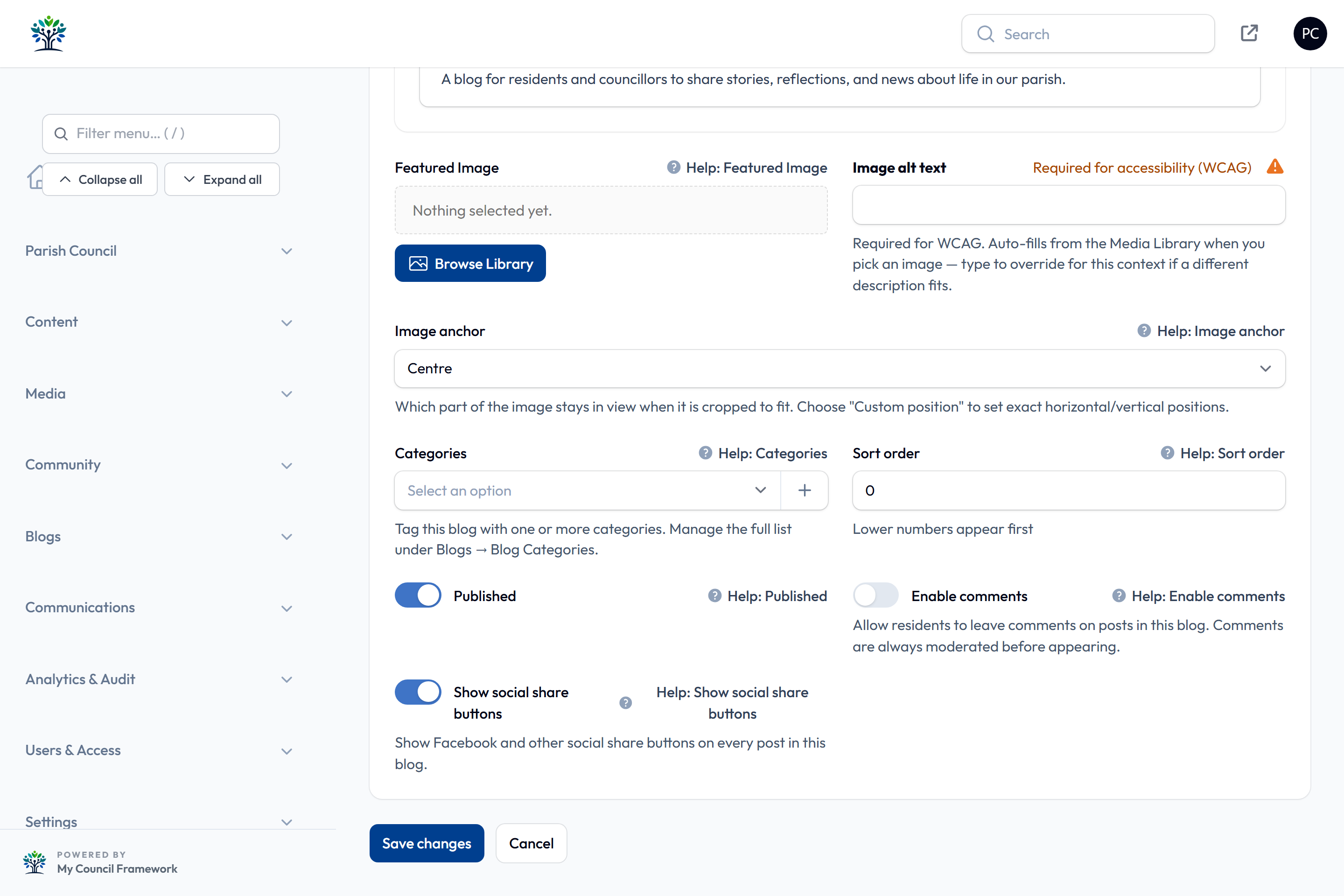
Categories describe a whole blog, not single posts, and show as labels on the blog's page. Manage the list under Blogs > Blog Categories: each has a Name, an optional Slug (made from the name if left blank), a Sort order and an Is active switch.
Writing a post
- Go to Blogs > Blog Posts.
- Select New blog post.
- Choose the Blog the post belongs to, and add a Title. The Slug (its web address) is made from the title, or you can type your own. Changing the title or the slug later changes the address, so links people have already shared stop working.
- Check the Author (it starts as you), and add a short Excerpt for listings and a Featured Image.
- Write the post in Content, and add any Tags (press Tab or type a comma after each).
- On the Publishing tab, Published is already on. Leave Publish Date empty to publish straight away, or pick a future date to schedule the post. You can also mark it Featured or set an Unpublish Date.
- Select Create.
When you edit a post, an Analytics section shows its Total Views and Reading Time. The SEO tab holds optional settings for search engines and social media.
Open Additional Content Blocks at the bottom of the Details tab to add the same building blocks used on ordinary pages. They appear beneath the post. See the Page Builder.

As with news, a deleted blog, post or comment can be brought back: set the Deleted records filter to show it, then select Restore. Only a super administrator can delete permanently.
What residents see
- The Blogs page (
/blogs) is an ordinary page built with the Blog block. The block can list the posts of one blog or show a directory of all your blogs. - Each blog has its own page listing its posts, 12 at a time, with its categories, and a feed for feed readers.
- Each post shows its author, reading time, view count and tags. Selecting a tag lists the blog's other posts with that tag.
Comments and moderation
When a blog has Enable comments switched on, each post has a comment form. Visitors who aren't signed in give their name and email. Nothing appears on the website until it has been approved.
- Go to Blogs > Blog Comments. A number beside the menu item shows how many are waiting.
- Read each waiting comment.
- Select Approve to make it public, or Delete to remove it. To take down a comment that's already public, select Reject.
To deal with several at once, tick them and use Approve selected or Reject selected. The blog's authors are emailed when a new comment arrives.
Comments are public once approved, so read each one carefully. Don't approve anything containing personal information, abuse or spam. A waiting comment is never visible to residents.
Blog authors
Give someone the blog_author role (see Users & Roles) and add them on a blog's Authors & Access tab, and they can look after that blog themselves without clerk access. An author:
- sees only the blogs they are an author of, but has full control of them, including other authors' posts;
- can publish straight away: there is no approval step;
- can approve, edit and delete comments on their blogs;
- can also create new blogs.
Use the English / Cymraeg button at the top of the form to enter the Welsh version of a blog or post. Anything left untranslated shows in English.