 MCF User Guide
Social Media
Connect your website to your council's social media presence. Add links to your profiles so they appear as icons around the site, and let residents share your news and events with the built-in share buttons.
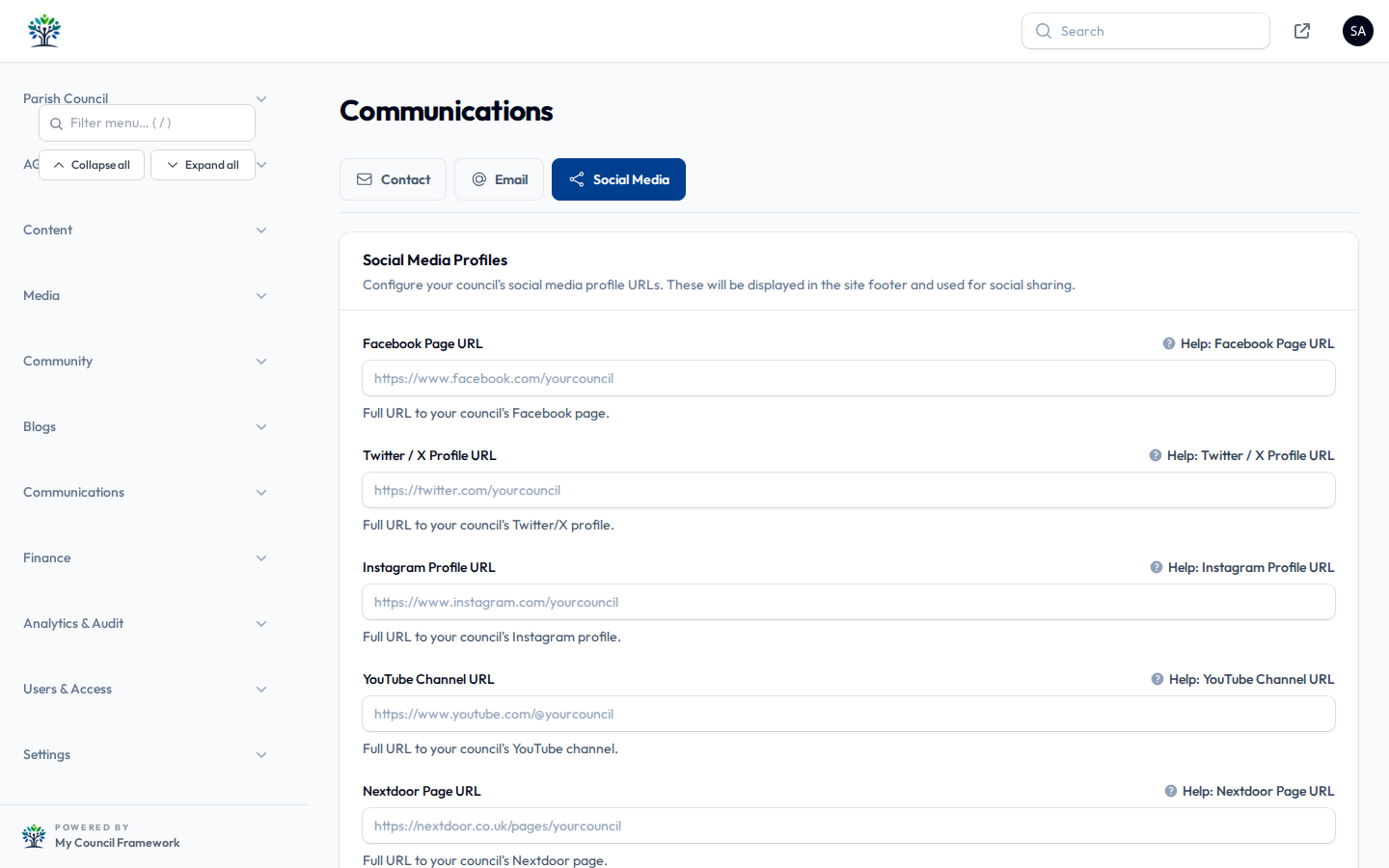
Adding your social media links
Social media links are managed in the admin panel's settings. You enter the full web address of each profile you want to show.
- Open the Social Media settings (found within the Communications settings).
- Enter the full URL for each account your council uses, for example
https://www.facebook.com/yourcouncil. - Leave a field blank for any platform you don't use — only the ones you fill in are shown.
- Select Save to apply.
Links you can add include:
- Facebook page
- Twitter / X profile
- Instagram profile
- YouTube channel
- LinkedIn page
Once saved, your profile links show as icons around the public website — typically in the footer, and in the header where space allows. Residents can tap an icon to open your profile on that platform.
Always paste the complete address starting with https://, copied straight
from your browser while viewing the profile. A partial address or just a username may not
link correctly.
Share buttons
As well as linking to your own profiles, the site can show share buttons on content such as news articles and events. These let a resident post a link to your page on their own social media, helping your announcements reach a wider audience with no extra effort from you.
If a National Mourning event is active and configured to do so, the share buttons are hidden for the duration, so upbeat sharing prompts don't appear at a sensitive time. They return automatically when the mourning event ends.