 MCF User Guide
Mobile App
The My Council app shows your council's news, events, meetings, notices and more on residents' phones. A resident connects the app to your council by scanning your QR code. The App Token Manager lists the phones using the app and lets you block one.
Mobile App Support is off on every site until it is switched on, and only a super administrator can switch it on. The app is not in the App Store or Google Play yet.
How residents connect
- The resident installs the My Council app and taps Scan your council's QR code.
- They scan the QR code on your website, noticeboard or newsletter. The code holds your website's address. Scanned with an ordinary phone camera instead, it simply opens your website.
- The app checks with your website that the code really is yours, and connects. No account or sign-in is needed.
When it connects, the app registers the phone with your website: it sends the phone's app identifier, its model, its operating system version and the app version. Your website gives the phone a private key (a "token"), which the app then sends with every request. A phone without a valid token gets nothing from your website.
Switching it on
Only a super administrator can do this.
- Go to Settings > Advanced and open the Developer tab.
- Under Communications, switch on Mobile App Support.
- Select Save Developer.
A Mobile App tab then appears under Settings > Modules, and App Token Manager appears under Communications. Switching the feature off again stops the app working with your council straight away.
Your QR code
Your website does not draw the QR code itself. Create one with a QR code provider of your choice;
the code must hold your website's address (for example https://www.yourparish.gov.uk).
Then:
- Go to Settings > Modules and open the Mobile App tab.
- In QR code image address, paste the image (embed) address your provider gives you.
It must start with
https://. A preview appears below it. - Choose where it shows: Show the QR code on the Contact Us page and Show the QR code in the site footer.
- Under Getting the app, you can change Where to get the app (the sentence shown with the code) and add the App Store link (iPhone) and Google Play link (Android) once the app is published.
- Select Save Mobile App.
Nothing is shown on the website until a QR code image address is saved. To show the code anywhere else, add the Mobile App QR Code block to a page. Print the same code on noticeboards and newsletters.
The App Token Manager
Go to Communications > App Token Manager. It lists every phone that has connected the app to your council, most recently used first. Clerks and super administrators can open it.
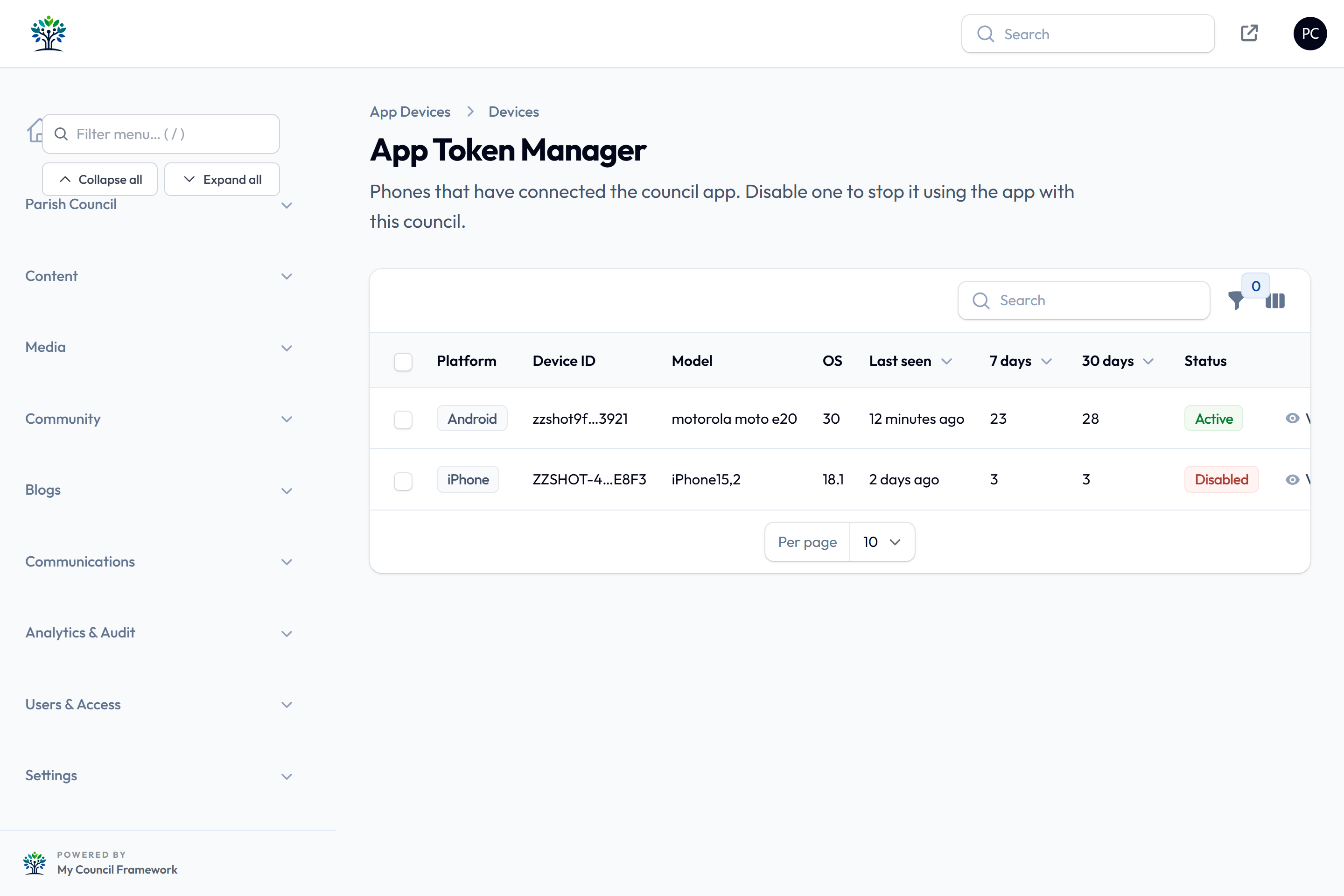
| Column | What it shows |
|---|---|
| Platform | Android or iPhone. |
| Device ID | The phone's app identifier, shortened. Hover to see it in full, or select it to copy it. |
| Model, OS | The phone model and its Android or iOS version. An iPhone shows its hardware name, such as "iPhone15,2". |
| Last seen | When the phone last used the app. |
| 7 days, 30 days | How many times the app asked your website for something in that period. Opening one screen usually makes a few requests. |
| Status | Active, or Disabled if it has been blocked. |
The App version and First seen columns are hidden at first; switch them on from the columns button. Filter by Platform, Status or Not seen for 90 days.
A phone's details
Select View on a row to see the phone's details, whether and why it is disabled, when it was first and last seen, and its activity day by day for the last 30 days, showing which parts of the app it used (news, events, meetings and so on). The app does not report what a resident reads or where they are.

Blocking a phone
- On the phone's row, open the ⋯ menu and choose Disable (or select Disable at the top of the phone's page).
- Enter a Reason if you like. It is for your records; the phone is not shown it.
- Select Confirm.
The phone stops working with your council at once. The resident sees an Access blocked screen with your contact details. Scanning your QR code again does not get round it: the phone stays blocked until you choose Enable. After that it works again as soon as the resident opens the app or taps Try again.
To block or unblock several phones at once, tick them and use the bulk actions.
Delete removes a phone and its activity, but if the app is still installed the phone can simply connect again and appears as a new entry. To keep a phone out, disable it.
Blocking stops a phone using the app with your council. It is not a security wall: someone who writes their own software could pretend to be a different phone. The same phone can also appear as a new entry after it has been factory reset, or on an iPhone after all of our apps have been removed.
Privacy and how long details are kept
A phone's app identifier counts as personal data. While Mobile App Support is on, your
website's Privacy Policy page (/privacy-policy) says what the app sends, why, and how long
it is kept. (If you have replaced the standard wording under Settings >
Compliance & Privacy, add this yourself.) Phones that have not used the app for 12 months are deleted automatically, with their
activity, and activity older than 12 months is deleted too.