 MCF User Guide
Meetings & Documents
Publishing meetings is one of the most important things you do for transparency. This page covers scheduling meetings, organising them by type, attaching agendas and minutes, and how the website sorts upcoming and past meetings automatically.
Setting up meeting types
Meeting types, such as Full Council or Planning Committee, group your meetings and let residents filter by them.
- Go to Parish Council > Meetings and select Manage Meeting Types at the top of the list. Types have no menu item of their own.
- Select New meeting type, or Edit an existing one.
- Enter the Name and Slug, an optional Description, and a Default Meeting Description: text that fills in a new meeting's description when you pick this type, such as the usual venue and start time.
- Use Sort order for the order types are listed, and switch Is active off to stop offering a type.
You can also create a type on the spot with the + beside the Meeting Type box on a meeting.
Scheduling a meeting
- Go to Parish Council > Meetings and select New meeting.
- Fill in the fields below.
- Leave Is published on to show the meeting on the website straight away, or switch it off to save a draft.
- Select Create. You return to the list.
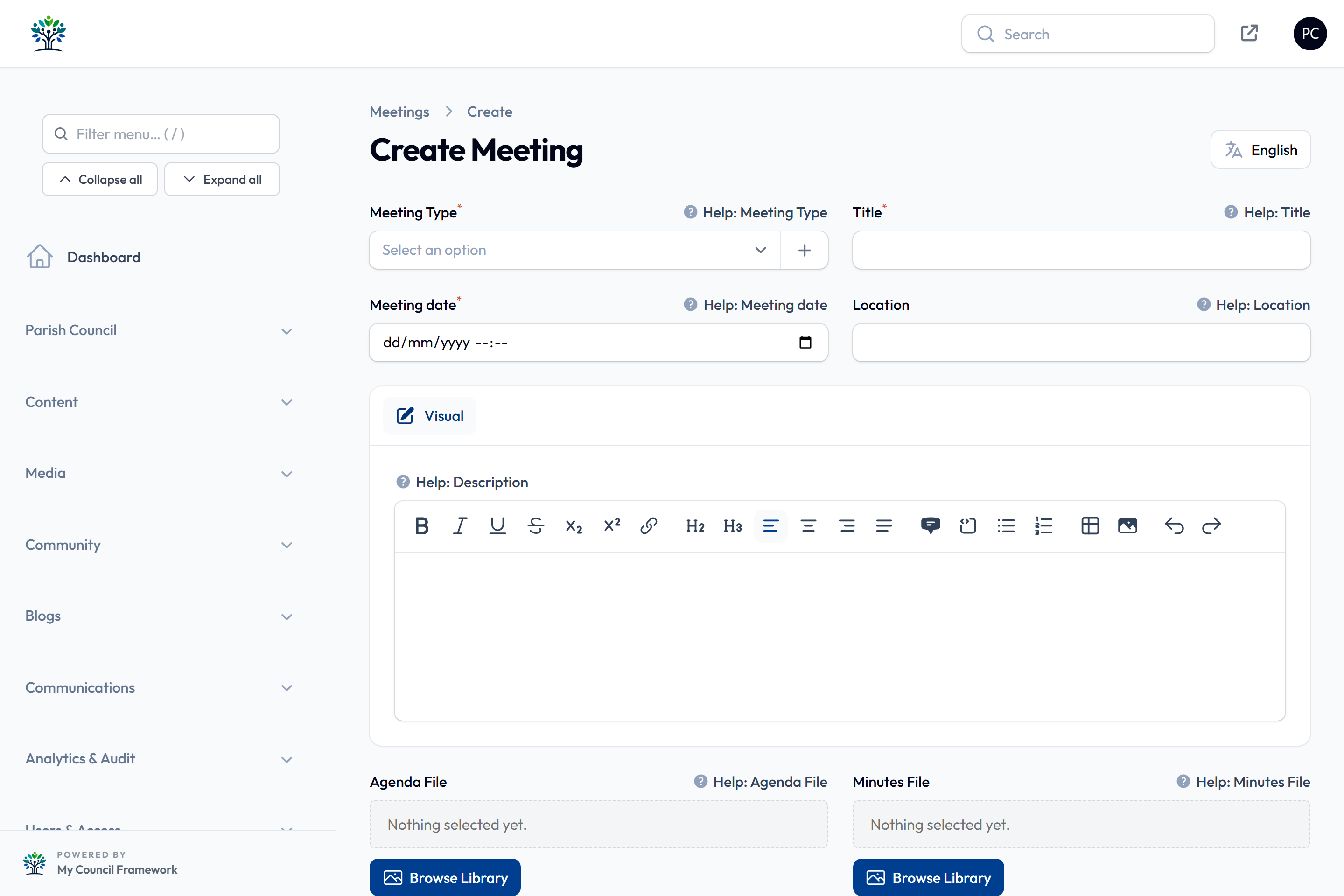
| Field | What to enter |
|---|---|
| Meeting Type | Required. Picking it fills an empty Description with the type's default text. |
| Title, Meeting date, Location | What, when and where. Pick the day in the calendar: changing only the month or year doesn't set the date. |
| Description | Any details residents need, such as access arrangements. |
| Agenda File, Minutes File | One document each, picked from the Media Library (see below). |
| Additional Documents | Any other papers, such as reports or plans. You can pick several. |
| Status | Upcoming (the default), Completed, Cancelled or Postponed (see below). |
| Is published | On by default. Switch it off to keep the meeting as a draft. |
| Publish Date, Unpublish Date | Optional scheduling. |
| Allow Public Participation, Public Participation Text | On by default: a box on the meeting page inviting residents to speak, with a Contact the Clerk button. It shows only for future meetings. |
Below these is an optional SEO section.
Attaching agendas, minutes and papers
- Upload the documents to the Media Library first, ideally in the Meetings folder. Or use + Upload new inside the picker.
- On the meeting, select Browse Library under Agenda File, Minutes File or Additional Documents, and pick the file.
- Select Save changes.
On the meeting page they're labelled "Meeting Agenda" and "Meeting Minutes"; additional documents show their Media Library title, so give files clear titles. There's one Minutes File per meeting: when draft minutes are approved, pick the approved version in its place.
Files in a protected folder are visible only to clerks and super administrators, so residents couldn't open them. The meeting file pickers don't show protected folders, and a protected file can't be saved on a meeting. Keep public meeting papers in ordinary folders.
Meeting status
The Status shows as a coloured label on the meeting page and on meeting cards. It doesn't change by itself: after a meeting, set it to Completed, otherwise it still says Upcoming. If a meeting is Cancelled or Postponed, change the status and explain in the description.
The Meetings list
The list shows each meeting's type, date and publishing state (Draft, Scheduled, Published or Expired). To bring back a deleted meeting, set the Deleted records filter to show it, then select Restore. Only a super administrator can delete permanently.
What residents see
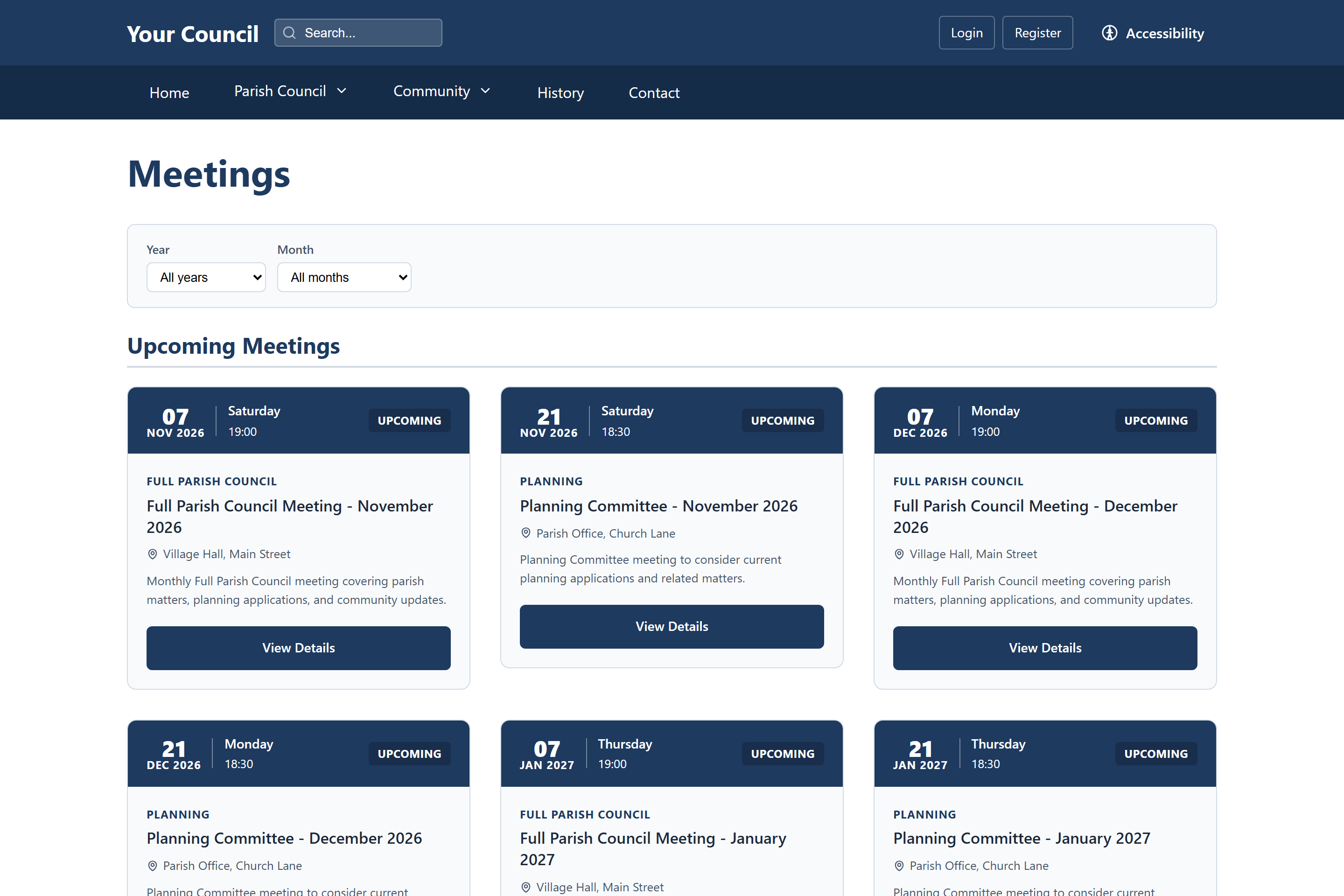
- The Meetings page (
/meetings) is an ordinary page built with the Meetings block: upcoming and past meetings, with filters by year, month and meeting type. - Each meeting has its own page with its details, documents, status and the public participation box.
- The Minutes Archive block lists every meeting's minutes, with search and type, year and month filters. The Next Meeting block highlights the next one.
- Meetings appear on the calendar alongside events, and in the site search.
See Listing blocks for the block options.
Use the English / Cymraeg button at the top of the page to switch the form to Welsh, then type the Welsh and save. The title, location, description and public participation text can be translated, and each language is saved separately.