 MCF User Guide
Personnel & Staff
The Personnel directory lists the people who work with the council: your clerk and office staff, volunteers, contractors, and borough or county councillors you want residents to be able to contact. It is separate from your own elected councillors.
Personnel vs councillors
| Councillors | Personnel |
|---|---|
| Your council's elected (or co-opted) members. | Everyone else residents may need: the clerk, office staff, volunteers, contractors, and borough or county councillors. |
| Have a register of interests and sub-committees. | Grouped by a personnel type, such as Office Staff or Volunteers. |
| Parish Council > Councillors | Parish Council > Personnel |
Adding someone
- Go to Parish Council > Personnel in the menu.
- Select New Personnel record.
- Fill in the Details tab (see below).
- Check the Publishing tab. Is active is already on, so they appear on the website when you save. Switch it off if you want to keep the record hidden.
- Select Create. You return to the list.
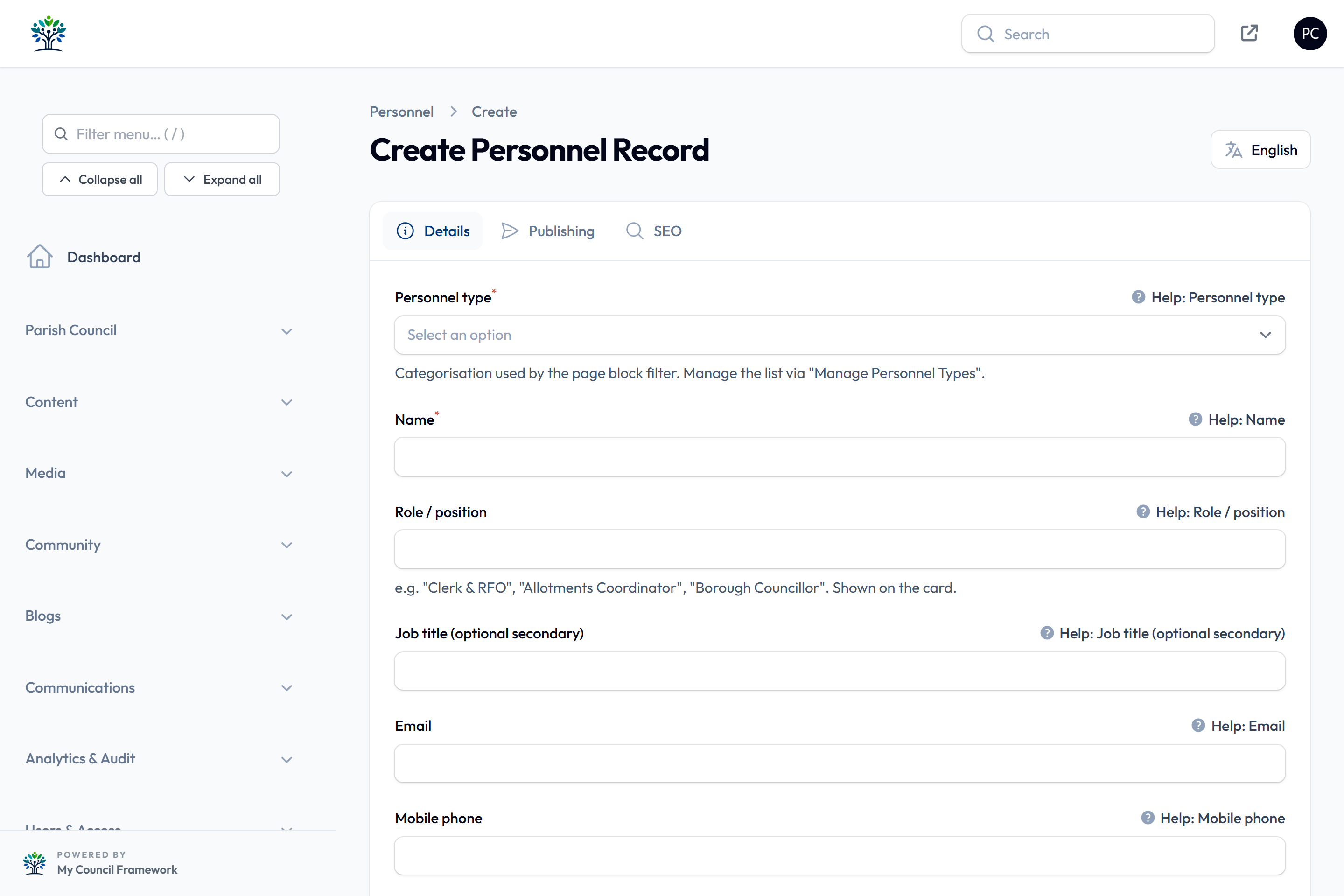
| Field | What to enter |
|---|---|
| Personnel type | Required. The group they're listed under, such as Office Staff. Only active types are offered. |
| Name | Their full name. |
| Role / position | Shown on their card, such as "Clerk & RFO" or "Allotments Coordinator". |
| Job title (optional secondary) | Optional. Shown under the role when filled in. |
| Email, Mobile phone, Office phone, Address | Optional contact details. The card shows email and office phone; their profile page shows the rest. |
| Responsibilities, Bio / profile | What they do, and a short profile, shown on their profile page. |
| Profile photo | From the Media Library, with its alt text (required once you pick a photo) and an image anchor. Profile photo URL (fallback) is used only if no photo is picked. |
On the Publishing tab, Pin to top puts someone first, and Sort order sets everyone else's order, lowest first. The SEO tab holds optional search-engine settings.
Publish personal phone numbers or addresses only with the person's agreement. A general council office number and email address often work better.
Personnel types
Types are the headings people are grouped under on the staff page, so name them in the plural, such as "Office Staff" or "Volunteers". A new site comes with Office Staff, Volunteers, Borough Councillors, County Councillors and Contractors.
- On the Personnel list, select Manage Personnel Types.
- Select Edit on a type, or create a new one.
- Enter the Name (leave Slug blank and it is made from the name), an optional Description, and a Sort order for the order of the groups.
- Switch Is active off to hide a type. Its people disappear from the staff page.
Two optional fields style the type's badge on the website:
- Color: the badge colour. The text on it is set to black or white automatically, whichever is easier to read, so any colour stays accessible.
- Heroicon name: a small icon on the badge, such as
heroicon-o-briefcase. Names are checked when you save. Browse the icons at heroicons.com and addheroicon-o-in front of the name.
What residents see
- The staff page (
/personnel) lists active people grouped under their types, pinned first, then by sort order. Types with nobody in them are left out. - Each person has a profile page with their contact details, responsibilities and profile.
- You can also show staff on any page with the Personnel block, for example just one type. See Listing blocks.
Editing or removing someone
Select Edit on the list, make your changes and select Save changes. The Type filter narrows the list. When someone leaves, switch off Is active to keep the record, or delete it. To bring back a deleted record, set the Deleted records filter to show it, then select Restore.
Use the English / Cymraeg button at the top of the page to switch the form to Welsh, then type the Welsh and save. The name, role, responsibilities and profile can be translated, and each language is saved separately.